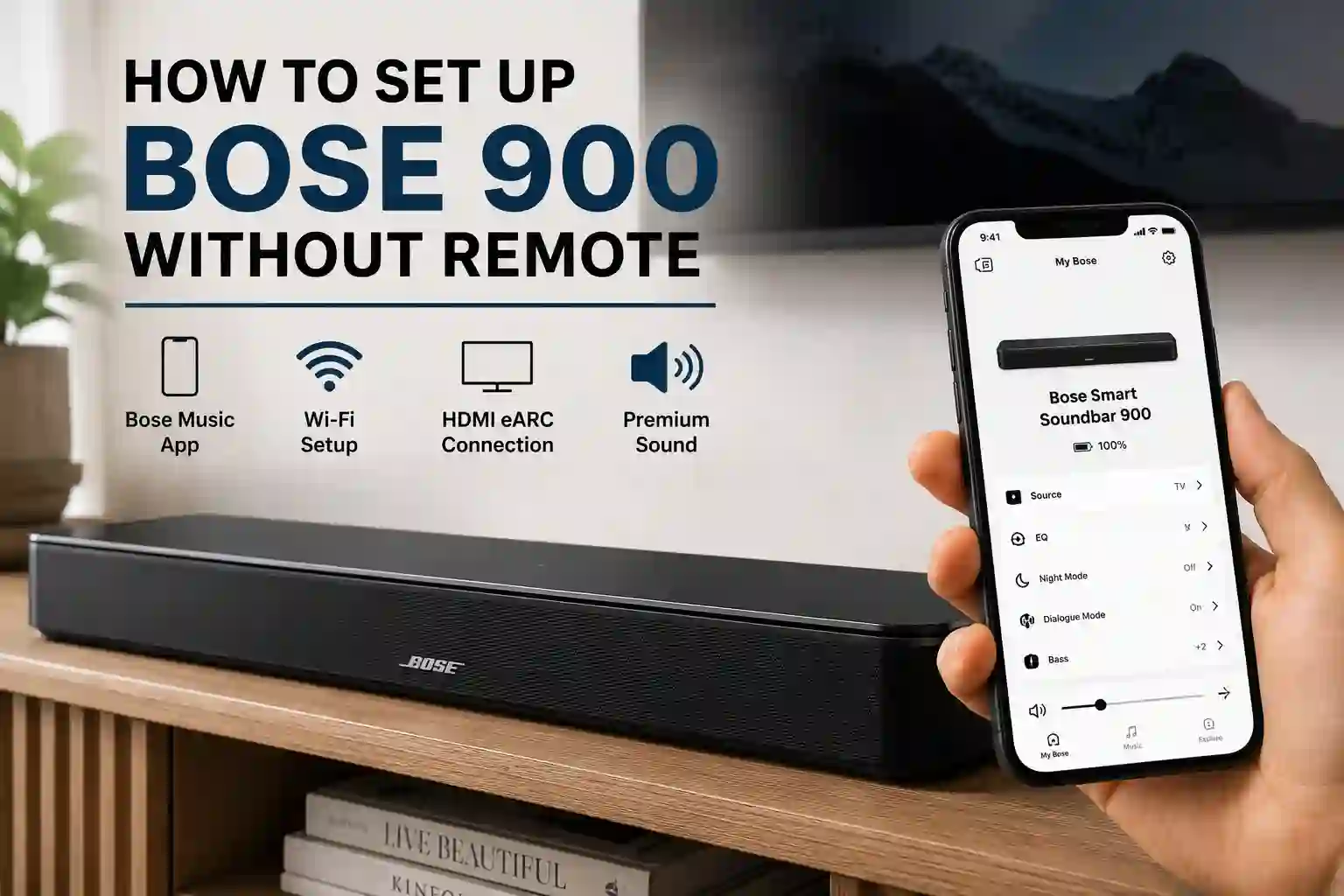
If you’ve lost or damaged your Bose Smart Soundbar 900 remote, don’t worry—you can still complete the setup without it. How to set up a Bose 900 without remote is a common question among users who have misplaced the original controller or simply prefer using app-based controls. Fortunately, Bose officially supports setup through the Bose Music app, allowing you to connect the soundbar to Wi-Fi, configure audio settings, and control it without the original remote.
In this guide, you’ll learn every practical way to set up your Bose Smart Soundbar 900 without a remote, including using the Bose Music app, HDMI-CEC with your TV remote, a universal remote, Ethernet, and Alexa Voice4Video. We’ll also explain which methods work for the initial setup, their limitations, and which option is best for most users.
Ways to Set Up a Bose 900 Without the Original Remote
| Method | How It Works | Best For | Can Complete Initial Setup? | Recommendation |
|---|---|---|---|---|
| Bose Music App (Official Method) | Uses the Bose Music app to connect the soundbar to Wi-Fi, complete setup, configure settings, and install updates. | First-time setup and full control | ✅ Yes | Best Choice – Official, easiest, and supports every feature. |
| TV Remote (HDMI-CEC) | After connecting via HDMI ARC/eARC and enabling HDMI-CEC, your TV remote controls the soundbar’s power and volume. | Everyday TV watching | ❌ No | Excellent after setup. Eliminates the need for the original remote. |
| Universal Remote | Pair a compatible universal remote to control basic functions like power, volume, mute, and input selection. | Users who prefer a physical remote | ❌ No | Good for daily operation but cannot replace the Bose Music app. |
| Ethernet + Bose Music App | Connect the soundbar directly to your router with an Ethernet cable. The Bose Music app detects the wired connection automatically. | Homes with weak or unstable Wi-Fi | ✅ Yes | Recommended if Wi-Fi setup fails or your router is nearby. |
| Alexa Voice Control (Voice4Video) | After enabling Alexa in the Bose Music app, use voice commands to control the TV and soundbar hands-free. | Hands-free operation | ❌ No | Convenient for daily use but not suitable for the initial setup. |
How Can You Set Up a Bose 900 Without the Original Remote?
You can set up the Bose Smart Soundbar 900 without the original remote using the Bose Music app, which is Bose’s official setup method. Once the setup is complete, you can control the soundbar using the Bose Music app, your TV remote (via HDMI-CEC), or a compatible universal remote.
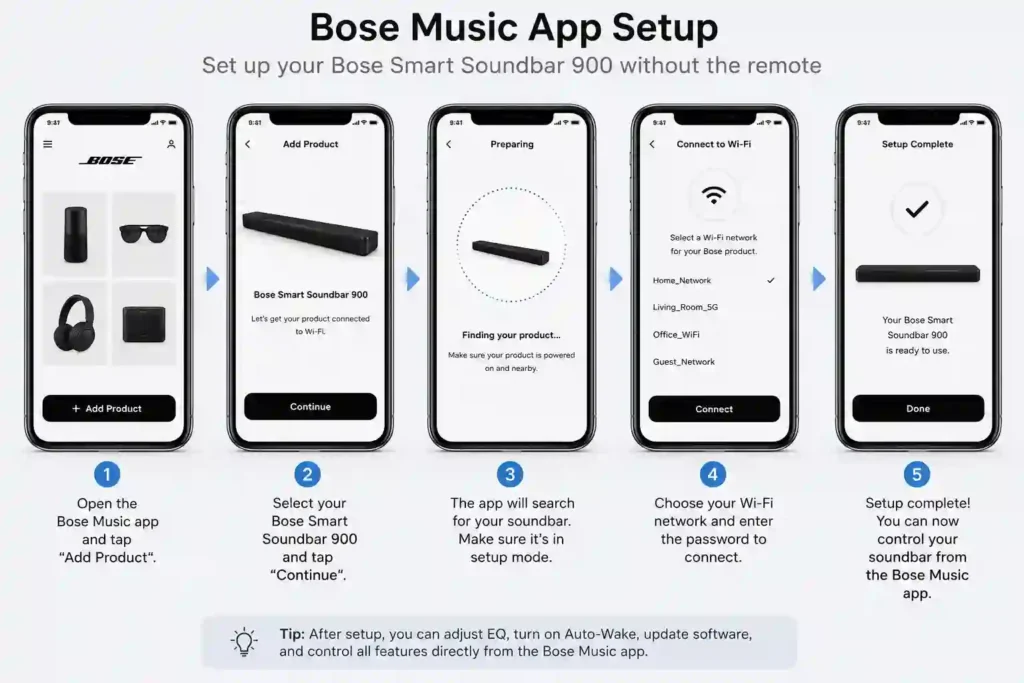
Method 1: Set Up Using the Bose Music App (Official Method)
This is the fastest, easiest and officially recommended way to set up your Bose Smart Soundbar 900.
Step 1: Connect the Soundbar to Power
Plug the soundbar into a power outlet using the supplied power cable. Wait until the front light bar turns solid amber, indicating it’s ready for setup.
Step 2: Install the Bose Music App
Download the Bose Music app on your Android or iPhone.
Sign in (or create a Bose account) and allow the required permissions:
- Bluetooth
- Local Network
- Location
These permissions allow the app to detect your soundbar.
Step 3: Add Your Soundbar
Open the app and select:
Add Product → Smart Speakers, Soundbars & Amps
The app automatically searches for nearby Bose devices. Select your Bose Smart Soundbar 900 when it appears.
Step 4: Connect to Wi-Fi
Choose your home Wi-Fi network, enter the password, and complete the connection.
The app will also help you:
- Name the soundbar
- Install firmware updates (if available)
- Finish the initial setup
Step 5: Connect Your TV
Connect the soundbar to your TV using:
- HDMI eARC/ARC (recommended)
- Optical cable (if your TV doesn’t support ARC)
The Bose Music app will verify the connection automatically.
Step 6: Finish the Setup
Complete any optional features you’d like to use, including:
- ADAPTiQ room calibration
- Alexa or Google Assistant
- Bass, treble, and center-channel adjustments
- Bose Bass Module or Surround Speaker pairing
Your Bose 900 is now ready to use.
Other Ways to Control the Bose 900 Without the Original Remote
Once the initial setup is complete, you rarely need the original remote.
1. Use the Bose Music App
The app can control almost every day-to-day function, including:
- Power
- Volume
- Input source
- EQ settings
- Dialogue Mode
- Voice assistant settings
- Music streaming
Best for: Everyday control and advanced settings.
2. Use Your TV Remote (HDMI-CEC)
If the soundbar is connected using HDMI ARC/eARC, your TV remote can control it.
How to Enable
- Connect the soundbar via HDMI ARC/eARC.
- Enable HDMI-CEC in your TV settings.
- Your TV remote should automatically control:
- Power
- Volume
- Mute
Best for: Everyday TV watching without opening the Bose app.
3. Use a Universal Remote
If you prefer a physical remote, you can pair a compatible universal remote after the soundbar has been configured.
Compatible Options
- SofaBaton X1S / U2
- One For All Universal Remote
- GE Universal Remote
- Philips Universal Remote
- Logitech Harmony (if you already own one)
What It Can Control
- Power
- Volume
- Mute
- Input selection (supported models)
Note: Advanced settings such as firmware updates, ADAPTiQ calibration, EQ adjustments, and voice assistant setup still require the Bose Music app.
4. Use a Wired Ethernet Connection
If your router is close to the soundbar, you can use an Ethernet cable instead of Wi-Fi.
How It Works
- Connect the soundbar to your router using an Ethernet cable.
- Open the Bose Music app.
- The app automatically detects the wired connection.
- Continue the remaining setup.
Good to know:
- No Wi-Fi password is required.
- The Bose Music app is still required for setup.
5. Control with Alexa Voice Commands (Voice4Video)
After setting up Alexa in the Bose Music app, you can control compatible TVs using voice commands.
You can say:
- “Alexa, turn on the TV.”
- “Alexa, play.”
- “Alexa, pause.”
- “Alexa, switch to HDMI 1.”
Requirements
- Alexa enabled in the Bose Music app
- Compatible TV
- HDMI-CEC enabled
Best for: Hands-free control without using a remote.
Troubleshooting
| Issue | Solution |
|---|---|
| Soundbar Won’t Power On | Ensure the power cord is firmly connected to the soundbar and a working power outlet. Open the Bose Music app and try powering on the device. If Auto Wake is enabled, confirm it is turned on in the app settings. |
| App Cannot Detect the Soundbar | Put the soundbar into setup mode by holding the TV and Skip Back buttons until the amber light appears. Connect your phone to the Bose Wi Fi network and re add the soundbar using the app. |
| Universal Remote Fails to Pair | Remove the batteries from the remote for 30 seconds, reinsert them, and restart the pairing process. Keep the remote 1 to 2 feet away from the soundbar during setup. |
| No Sound or TV Remote Not Controlling Volume | Verify HDMI CEC is enabled on your TV and the HDMI cable is connected to the ARC or eARC port. If using an optical cable, ensure it is fully inserted and Auto Wake is enabled in the app. |
| App or Network Connectivity Issues | Confirm the soundbar is not connected via Ethernet during wireless setup. Temporarily disable mobile data on your phone, reconnect to the Bose network, and restart your router if needed. |
Advanced Tips
- Enable Auto-Wake in the app for a seamless power-on experience triggered by TV audio signals.
- Pair more than one universal or backup remote to avoid losing control access.
- Install a smartphone universal remote app compatible with Bose for quick alternative control.
- Adjust EQ settings such as bass, treble, and center channel levels for personalized audio optimization.
- Use an Ethernet cable for a more stable connection if your Wi-Fi network is unreliable or congested.
Conclusion
How to set up a Bose 900 without remote is much easier than many people expect. The Bose Music app is the official and most reliable way to complete the initial setup, connect the soundbar to Wi-Fi or Ethernet, configure audio settings, and enable features like Alexa and ADAPTiQ room calibration. Once the setup is complete, you can control the soundbar using the Bose Music app, your TV remote through HDMI-CEC, a compatible universal remote, or even voice commands with Alexa.
For most users, the fastest and easiest solution is to use the Bose Music app with an HDMI eARC/ARC connection, then enable HDMI-CEC so your TV remote handles everyday controls. If you’re looking for the best method for how to set up a Bose 900 without remote, this approach offers the simplest setup and the most convenient long-term experience without needing the original Bose remote..
How do I turn on the Bose 900 without a remote?
You can turn it on using the Bose Music app or enable Auto-Wake to respond automatically when your TV sends an audio signal.
Can I control my Bose soundbar 900 without the original remote?
Yes, you can use the Bose Music app, a universal remote, or your TV’s remote via HDMI-CEC to control the soundbar.
How do I reset the Bose Smart Soundbar 900 without a remote?
Press and hold the TV and Skip Back buttons on the soundbar until the light turns amber, then follow app instructions to reconfigure setup.
Why is my Bose Music app not connecting to the soundbar?
Ensure the soundbar is in setup mode and your phone is connected to the Bose Wi-Fi network. Restart your router if needed.
Is it possible to connect a universal remote to the Bose 900?
Yes, you can pair it through the Bose Music app or manually program it by using a device code or automatic sync process.