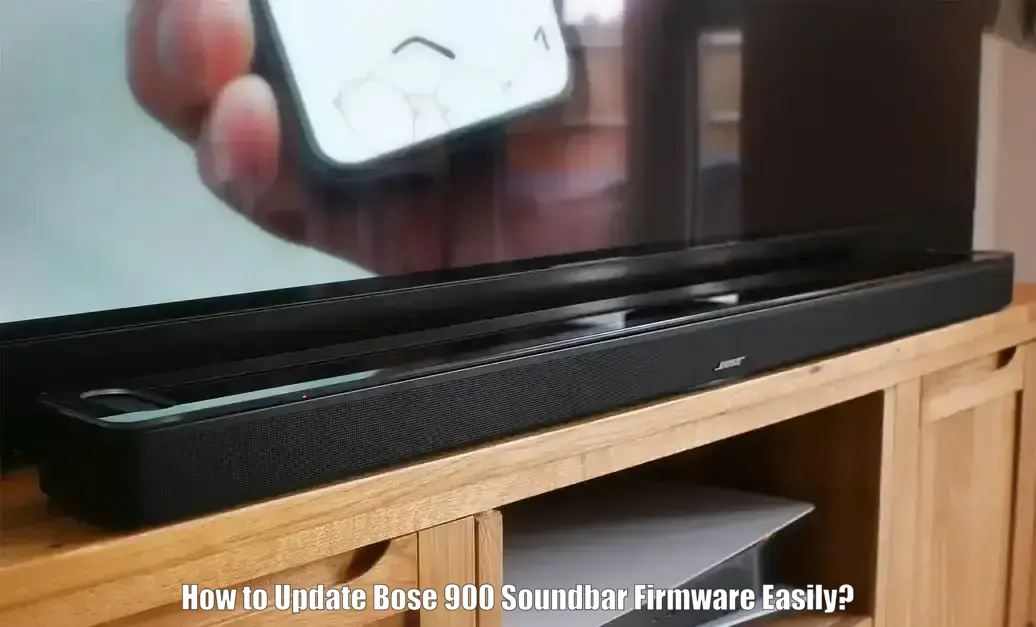
Knowing how to update Bose 900 Soundbar helps ensure your device runs smoothly with the latest improvements and bug fixes. Whether you are dealing with connectivity glitches, missing features, or simply want to keep your soundbar up to date, performing a firmware update is an important maintenance step.
This guide explains multiple update methods including automatic updates, manual updates using the Bose Music app, and a USB based approach so you can choose the option that best fits your setup. This guide is useful for users troubleshooting audio performance issues, enabling new features, or recovering from previous update failures. By the end of this guide, you will know how to check your current firmware version, start an update, and confirm that your Bose Smart Soundbar 900 is running the latest firmware with confidence.
Prerequisites
- Bose Smart Soundbar 900 hardware properly set up
- Mobile device (iOS or Android) with the Bose Music app installed
- Computer with internet access for USB or Direct IP updates (optional)
- USB cable if using the computer USB update method
- Active and stable Wi-Fi network connection
- Continuous power supply (do not unplug during update)
How to Update Bose 900 Soundbar Firmware, Step-by-Step Instructions
Method 1: Update via Bose Music App (Automatic or Manual)
- Open the Bose Music app on your smartphone or tablet.
- Sign in and select Bose Smart Soundbar 900 from the device list.
- Go to Device Settings and check the current firmware version.
- Compare it with the latest version available on the official Bose website.
- Keep the soundbar powered on and connected to Wi-Fi overnight to allow automatic updates.
- For a manual app update, tap Check for software updates and follow the on-screen instructions.
Method 2: Update via USB (Manual Firmware Update)
- Download the latest firmware ZIP file from the official Bose support website.
- Do not unzip the file.
- Power off the soundbar and unplug it for 30 seconds, then power it back on.
- Connect the soundbar to your computer using a USB cable.
- Open the Bose-provided update URL on your computer.
- Upload the firmware ZIP file and follow the on-screen prompts to complete the update.
Method 3: Direct IP Update (If App or USB Fails)
- Find the soundbar’s IP address using the Bose Music app or your router settings.
- Open a web browser on a device connected to the same network.
- Enter the IP address in the address bar.
- Follow the on-screen instructions to upload the firmware ZIP file.
- This method bypasses some setup steps and is useful if other update methods fail.
Important Tips Before Updating
- Ensure both your device and soundbar are connected to the same stable Wi-Fi network.
- Avoid network interruptions during the update process.
Verify Firmware After Update
- Open the Bose Music app.
- Check the firmware version in Device Settings.
- Confirm it matches the latest release (for example, v14).
Troubleshooting While Updating Bose 900 Soundbar Firmware
| Issue | Solution |
|---|---|
| Soundbar Not Responding After Update | Unplug the Bose Smart Soundbar 900 for 30 seconds and reconnect it. If the issue continues, perform a factory reset using the Bose Music app to restore default settings and set up the device again. |
| Update Fails During Installation | Enter recovery mode and retry the update using the USB or Direct IP method. Skip setup prompts and proceed directly with uploading the firmware to restore functionality. |
| No Update Detected in App | Ensure the soundbar is connected to a stable Wi-Fi network. Restart your router and the soundbar, then recheck for updates in the app and verify the current firmware version. |
| Bose App Cannot Find Device | Enable Bluetooth and network permissions on your mobile device. Restart both your phone and the soundbar, then reconnect through the Bose Music app. |
| USB Update Not Recognized | Use a compatible USB cable and ensure the firmware file remains in ZIP format. Restart both the soundbar and your computer, then retry the update using the official update URL. |
Advanced Tips
- Use the USB update method for a faster and more stable update experience, especially if wireless methods fail.
- Access release notes from Bose’s official site to track what new features or fixes were introduced with each firmware version.
- To reduce compatibility issues, always skip setup mode when updating from recovery mode.
- Keep the soundbar on and connected to Wi-Fi during overnight hours to automatically receive firmware updates.
- Periodically check the firmware version in the Bose Music app to ensure you are running the most current software.
Conclusion
Updating your Bose Smart Soundbar 900 ensures optimal performance, access to the newest features, and improved system stability. Whether using the automatic update, app-based method, USB, or Direct IP options, each method is designed to help you complete the update process confidently. Always verify the update and refer to support if unexpected errors occur. Staying current with firmware versions ensures your soundbar delivers the premium audio experience Bose is known for.
How do I update the software on my Bose soundbar?
Use the Bose Music app, automatic overnight updates, or manual methods like USB or Direct IP to update software effectively.
How do I force my Bose speaker to update?
Open the Bose Music app and check for updates. If none appear, use a USB or Direct IP update method. Recovery mode can also help with forced updates.
How do I update the firmware of my soundbar?
You can update via Bose Music app (manual), automatic Wi-Fi updates, USB connection, or Direct IP method available through the device’s IP address.
Bose 900 firmware update procedure?
Check your current version, then attempt an automatic or app-based update first. If issues arise, update manually via USB or Direct IP following official instructions.
Do I unzip firmware file before update?
No, always keep the firmware file in ZIP format. Upload the ZIP file directly during USB or IP-based updates to prevent errors.
“`