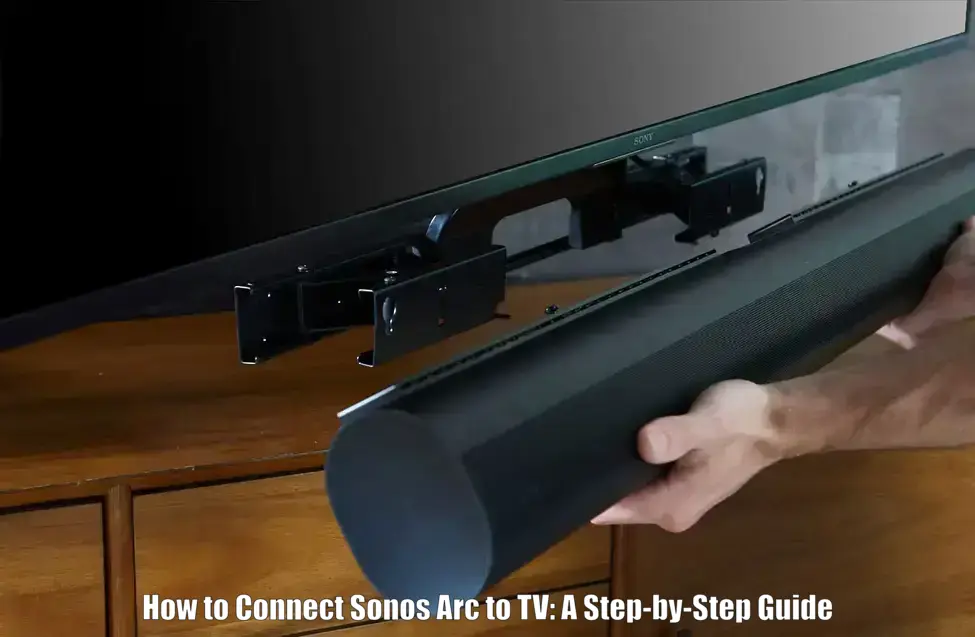
If you’re wondering how to connect Sonos Arc to TV, this comprehensive guide will walk you through the process step by step. Whether you’re upgrading your home theater or simply replacing weak TV speakers, Sonos Arc is a premium soundbar designed to deliver immersive Dolby Atmos audio. By connecting it correctly, you’ll not only improve your sound quality but also enable smart voice control, remote functionality, and multi-room audio through the Sonos ecosystem. This guide is perfect for new Sonos Arc owners or anyone seeking better cinematic sound from their smart TV setup.
Prerequisites
- Hardware: Sonos Arc soundbar, included HDMI cable, power cord; optical adapter (if TV lacks HDMI ARC)
- TV Requirements: TV with HDMI ARC or eARC port is highly recommended; optical available with limited functionality
- Software: Sonos S2 app installed on iOS or Android devices
- Network: Home WiFi (2.4GHz b/g/n) or Ethernet cable for stable setup; broadband recommended
- Environment: Nearby power outlet; room temperature between 32°F and 104°F (0°C to 40°C)
Step-by-Step Instructions
- Choose the Setup Location: Place the Sonos Arc in front of your TV or wall-mount it at least 5.5 inches below the screen for best sound quality.
- Connect the Power Cable: Plug the included power cord into the Sonos Arc and connect it to a nearby wall outlet to power it on.
- Attach the HDMI Cable: Use the supplied HDMI cable to connect the Arc’s HDMI port to your TV’s HDMI ARC or eARC port.
- Use Optical Adapter if Needed: If your TV does not have an HDMI ARC port, attach the optical adapter to the HDMI cable and connect it to your TV’s optical audio output.
- Power On the TV: Switch on your TV and confirm it’s sending audio through the ARC or optical connection so the Sonos Arc can begin communication.
- Open Sonos S2 app and begin setup: Launch the Sonos S2 app on your smartphone or tablet while connected to the same WiFi as your Sonos Arc. Choose “Set up a new system” or select “Add Product” if you’re adding the Arc to an existing Sonos setup.
- Put Sonos Arc into pairing mode: When prompted, press and hold the Join button on the back of the Sonos Arc. This places the device in pairing mode and allows the app to detect it over your WiFi network.
- Assign a room and name to your Arc: Follow the prompts in the app to assign your Sonos Arc to a specific room (e.g., Living Room or Home Theater). This helps organize your speakers and enables better syncing in multi-room setups.
- Enable HDMI-CEC on your TV: Go into your TV’s settings and activate HDMI-CEC (this may be called Anynet+, Simplink, Bravia Sync, etc., depending on brand). This allows the Sonos Arc to control your TV’s volume or power with your voice or Sonos app.
- Test TV audio and Dolby Atmos functionality: Play content with supported surround formats. Open the Sonos app’s “Now Playing” screen to confirm if Dolby Atmos is active. If not, verify the content source and ensure your TV is configured to pass Atmos via HDMI eARC.
Troubleshooting
| Issue | Solution |
|---|---|
| No Sound from Sonos Arc | Ensure the Sonos Arc is connected to the TV HDMI ARC or eARC port. Check that the TV audio output is set to HDMI ARC and confirm HDMI CEC is enabled for proper functionality. |
| Sonos Arc Not Detected During Setup | Verify your mobile device is connected to the same Wi Fi network and that you are using the Sonos S2 app. Press the Join button on the back of the Arc again and ensure strong network signal. Using an Ethernet cable can improve detection during setup. |
| TV Remote or Voice Commands Not Working | If using the optical adapter, remote control and voice features will not function. Switch to HDMI ARC and enable HDMI CEC on your TV to restore full smart controls. |
| Dolby Atmos Not Showing in Sonos App | Confirm your TV supports Dolby Atmos passthrough and that the content being played is Atmos enabled. HDMI eARC or ARC is required. Check the Now Playing section in the app to verify audio format. |
| HDMI ARC Issues or Errors | Restart both the TV and Sonos Arc if audio is inconsistent. If problems continue, use the optical adapter as a temporary solution with limited features. Ensure HDMI CEC is enabled and firmware is up to date. |
Advanced Tips
- Connect Sonos Arc via Ethernet for a more stable network connection, especially if encountering WiFi hiccups during streaming.
- Enable voice services like Alexa, Google Assistant, or Sonos Voice Control in the Sonos app to control TV power, volume, and music hands-free.
- If using Apple TV or Amazon Fire TV Stick, connect those devices directly to your TV’s HDMI inputs to allow them to send Atmos audio to the Arc through the TV’s ARC port.
- Run Trueplay tuning (iOS devices only) in the Sonos app to optimize audio performance based on your room’s acoustics and speaker placement.
- Maintain at least 5.5 inches between the Arc and your TV (or wall-mount it just below the TV) for ideal Dolby Atmos height effect.
Conclusion
Successfully connecting your Sonos Arc to your TV enhances your home entertainment with rich, immersive sound and Dolby Atmos support. Whether you use HDMI ARC or eARC, following these steps ensures optimal audio setup and control features. By learning how to connect Sonos Arc to TV properly, you unlock its full potential for movies, shows, and music that sound as stunning as they look. Be sure to keep your system updated and explore advanced features to get the most from your investment.
How do I connect my Sonos to my TV wirelessly
No, TV audio must go through a physical connection, typically HDMI ARC or optical. Sonos does not support direct wireless audio input from TVs.
How to put Sonos Arc in pairing mode?
Press and hold the Join button on the back of the Arc during setup in the Sonos S2 app. This connects it to your home WiFi and adds it to your system.
Can Sonos Arc attach to TV?
The Arc can be wall-mounted directly below your TV, but it does not physically attach to the TV itself. Use a separate wall-mount bracket or surface placement.
How to connect Sonos Arc to TV with HDMI?
Plug the included HDMI cable from the Arc’s HDMI port into your TV’s HDMI ARC or eARC port. Enable HDMI-CEC for full control features.
What if my TV doesn’t have HDMI ARC?
Use the included optical audio adapter to connect the Arc to the TV’s optical output. Note that this limits voice and remote controls, and disables Dolby Atmos support.