If you’re searching for how to reset Sonos Arc , first determine whether you actually need a factory reset. A factory reset completely erases the Arc’s saved settings and removes it from your Sonos system, so Sonos does not recommend using it as a routine troubleshooting step.
If you’re selling the soundbar, giving it away, starting from scratch, or Sonos Support has specifically advised a reset, the steps below show how to factory reset the Sonos Arc using the rear Join button. If you only need to change Wi-Fi or fix a temporary connection issue, you can usually do that without resetting the Arc.
Quick Answer: How to Reset Sonos Arc
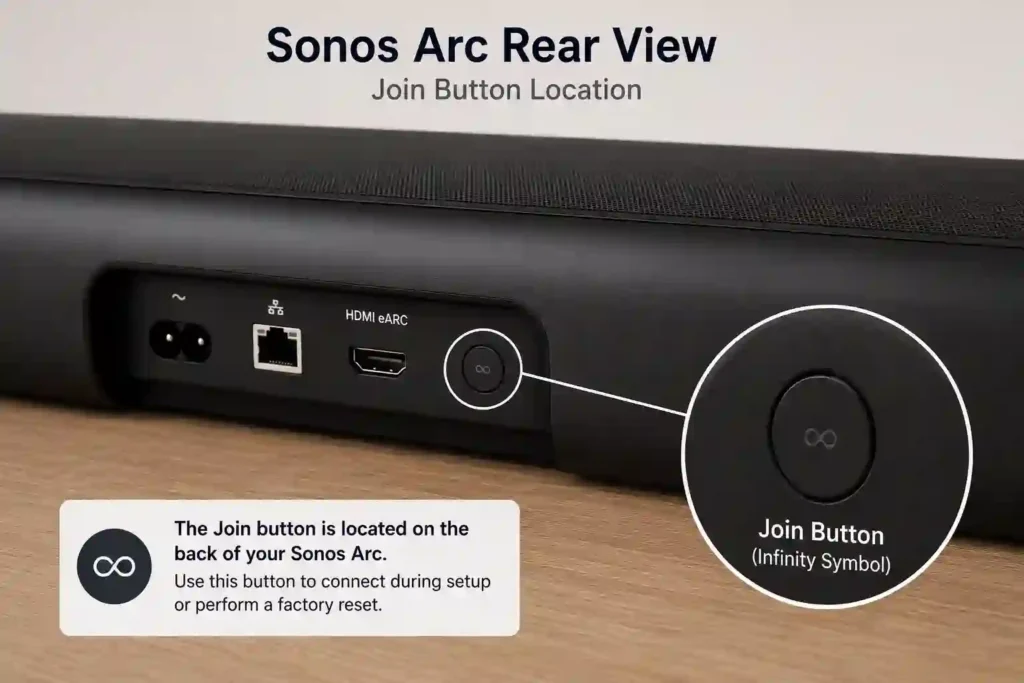
To factory reset a Sonos Arc, unplug the power cable, hold the Join button, reconnect power while continuing to hold the button, and wait for the light to flash orange and white. When the light flashes green, the reset is complete and the Arc is ready to set up again.
Before You Factory Reset Your Sonos Arc
Important: A factory reset erases the Sonos Arc’s saved settings and removes it from your Sonos system. Sonos does not recommend factory resetting as a routine troubleshooting step. If you are only changing Wi-Fi, fixing a temporary connection problem, or restarting the soundbar, try the Sonos app or a normal reboot first.
Use a factory reset when:
- You are selling or giving away the Arc.
- You want to completely erase its configuration.
- Sonos Support specifically instructs you to reset it.
- You genuinely need to add it again as a fresh product.
Restart vs Factory Reset: What Should You Do?
| Situation | Recommended Action |
|---|---|
| Sonos Arc is temporarily frozen | Restart the Arc |
| Audio suddenly stops or keeps cutting out | Restart first |
| You changed your Wi-Fi router or password | Update the network in the Sonos app |
| Sonos Arc is missing from the Sonos app | Check the app and network, then restart the Arc and router |
| You are selling or giving away the Sonos Arc | Factory reset |
| Sonos Support specifically recommends starting fresh | Factory reset |
| You intentionally want to erase all saved settings and configuration | Factory reset |
Prerequisites
- A Sonos Arc soundbar with access to the rear Join button (labeled with an infinity symbol)
- The Sonos app installed on a compatible iOS or Android mobile device
- A stable WiFi network for use after the reset
- An Ethernet cable (optional but useful for troubleshooting WiFi setup)
Factory Reset Sonos Arc: Step-by-Step Instructions
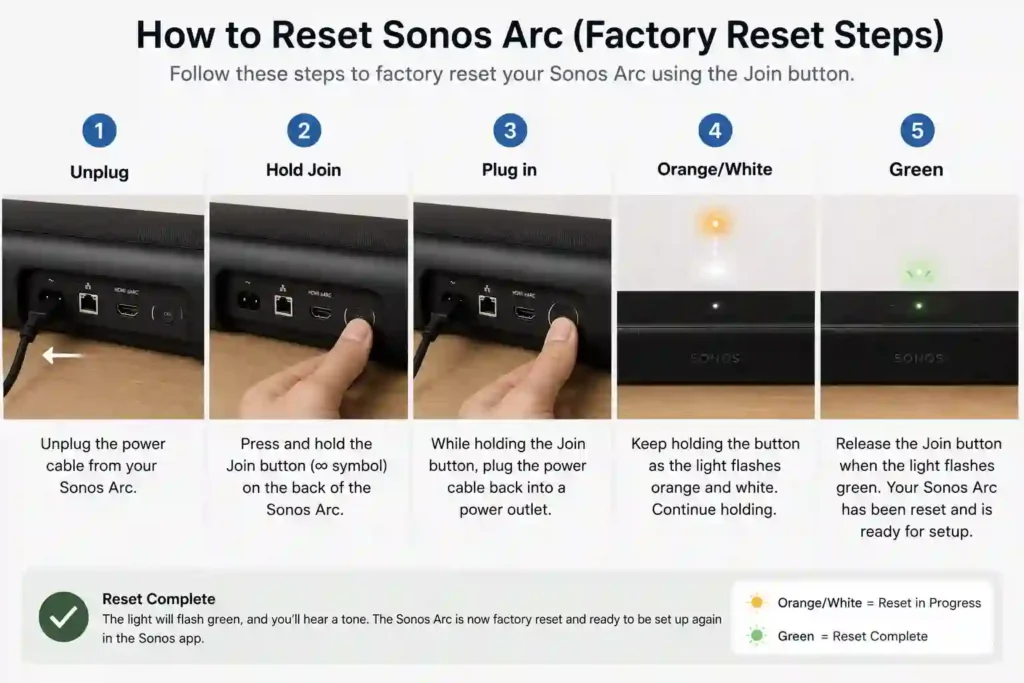
Follow these steps to restore your Sonos Arc to factory settings:
- Unplug the Sonos Arc
Disconnect the power cord from the soundbar and wait a few seconds for it to power off completely. - Locate the Join Button
Find the Join button on the back of the Sonos Arc. It is marked with an infinity (∞) symbol. - Press and Hold the Join Button
Press and continue holding the Join button. - Reconnect the Power
While still holding the Join button, plug the power cord back into the Sonos Arc. - Wait for the Orange and White Flashing Light
Continue holding the Join button until the status light begins flashing orange and white. This indicates that the factory reset process is underway. - Release the Join Button
Once the status light is flashing orange and white, release the Join button. - Wait for the Green Status Light
Wait until the status light flashes green. This indicates that the Sonos Arc has been successfully reset and is ready to be set up again.
What to Do After Resetting Sonos Arc
Once the Sonos Arc is reset:
- Open the Sonos app on your smartphone or tablet.
- Follow the on-screen instructions to add the Sonos Arc as a new product.
- Reconnect the Arc to your Wi-Fi network and TV using HDMI eARC/ARC as appropriate.
- Restore your preferred audio and system settings, including:
- Room assignment and name
- EQ settings
- Trueplay tuning, if applicable
- Surround speaker configuration
- Sonos Sub configuration
Troubleshooting
| Problem | What to Do |
|---|---|
| Light never flashes orange/white | Repeat the process and make sure the Join button is held before reconnecting power. |
| Light never reaches flashing green | Wait a little longer; if it still fails, retry the reset or contact Sonos Support. |
| Arc resets but app cannot find it | Confirm your phone and Arc are on the correct network and restart the app/router if needed. |
| New Wi-Fi network will not connect | Use the Sonos app’s Update Network flow instead of factory resetting again. |
| TV audio does not work after reset | Reconfigure HDMI ARC/eARC and TV audio settings. |
Conclusion
A Sonos Arc factory reset is useful when you need to completely erase the soundbar, sell or give it away, or start fresh after specific troubleshooting guidance. For ordinary Wi-Fi, app, or playback problems, a reboot or network update is usually the better first step. If you do need a factory reset, hold the Join button while reconnecting power and wait until the status light flashes green before setting the Arc up again.
FAQs
What button resets Sonos Arc?
The reset is performed using the Join button, marked with an infinity symbol, located on the back of the Arc.
Why does the light flash in different colors during reset?
The white, orange, and green light pattern indicates reset progress. Hold the Join button until the green light flashes to confirm the reset is complete.
Can a factory reset remove old WiFi settings?
Yes, a factory reset erases saved WiFi networks and all user settings, allowing for fresh configuration.
Can I reset the Arc using the Sonos app?
No, the Sonos app does not offer a remote reset. You must use the physical Join button and perform a power cycle.
How do I change the Wi-Fi on Sonos Arc without factory resetting it?
You usually do not need to factory reset the Sonos Arc to change Wi-Fi networks. Open the Sonos app and use Settings → Help Center → Update Network when prompted, then follow the instructions to connect the Arc to the new Wi-Fi network.
“`