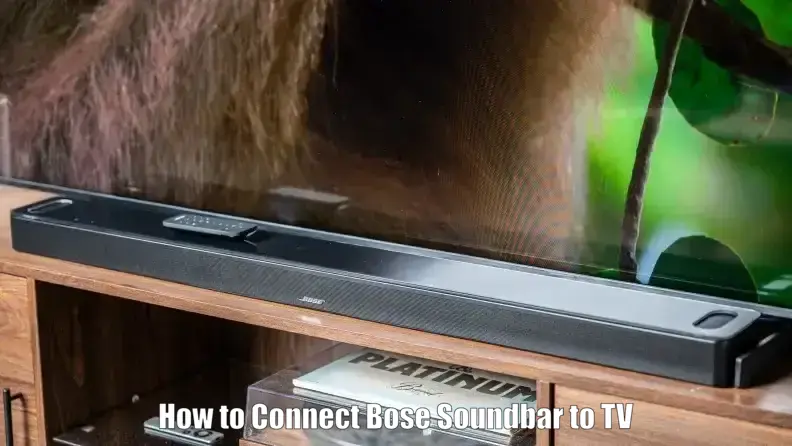
Connecting a Bose soundbar to your TV can improve dialogue clarity and make movies, shows, and games more enjoyable. The correct setup depends on your Bose soundbar model and the audio connections available on your television.
Many Bose soundbars support HDMI ARC or optical audio, while older models may use digital coaxial or analog connections. Bluetooth is available on some models for compatible audio devices, but it should not be assumed to work as a wireless TV-audio connection on every Bose soundbar.
This guide explains how to connect the Bose TV Speaker, SoundTouch 300, Solo Soundbar Series II, and Smart Soundbar 600 to your TV. You will also learn how to configure audio settings, troubleshoot common connection problems, and choose the correct setup for your device.
Which Connection Should You Use?
Before connecting your soundbar, check the ports on both your TV and Bose device. The connection you can use depends on the inputs and outputs supported by each product.
| Connection method | Main benefit | What to check |
|---|---|---|
| HDMI ARC/eARC | Sends TV audio to the soundbar and can support compatible remote and power control | Both devices must have compatible HDMI ARC/eARC connections |
| Optical audio | Simple, reliable wired audio connection | TV must have an optical audio output |
| Digital coaxial | Useful for compatible older equipment | Both devices must support digital coaxial audio |
| Analog audio | Can work with compatible older TVs and soundbars | Matching analog connections must be available |
| Bluetooth | Wireless audio for compatible devices | Confirm that both devices support the specific connection you want to use |
Quick Decision Table
| Your situation | Recommended next step |
|---|---|
| TV and soundbar both have ARC/eARC | Connect through the corresponding ARC/eARC ports |
| No ARC/eARC, but both have optical | Use an optical cable |
| Older TV and compatible older Bose model | Check digital coaxial or analog options |
| TV has no matching audio output | Check both manuals for a compatible converter |
| Considering Bluetooth | Verify that the TV and soundbar support the required audio connection |
For the Bose TV Speaker, SoundTouch 300, and Smart Soundbar 600, HDMI ARC or optical audio are the main wired TV connection options. The Bose Solo Soundbar Series II does not have HDMI or Bluetooth; it supports optical, digital coaxial, and compatible analog connections.
What You Need Before Connecting Your Bose Soundbar
Prepare the following items before starting:
- Your Bose soundbar and power cable.
- An HDMI cable for a supported ARC/eARC connection, or an optical cable for compatible devices.
- A compatible audio output on your TV.
- Your TV remote to access the audio settings.
- The Bose Music or SoundTouch app if your particular product requires it for additional setup or features.
Important: An HDMI cable does not need to be labelled “ARC.” ARC and eARC are features of the HDMI ports on the TV and soundbar. Use a suitable High Speed HDMI cable or better, following the requirements in your product manual.
How to Connect a Bose TV Speaker to a TV
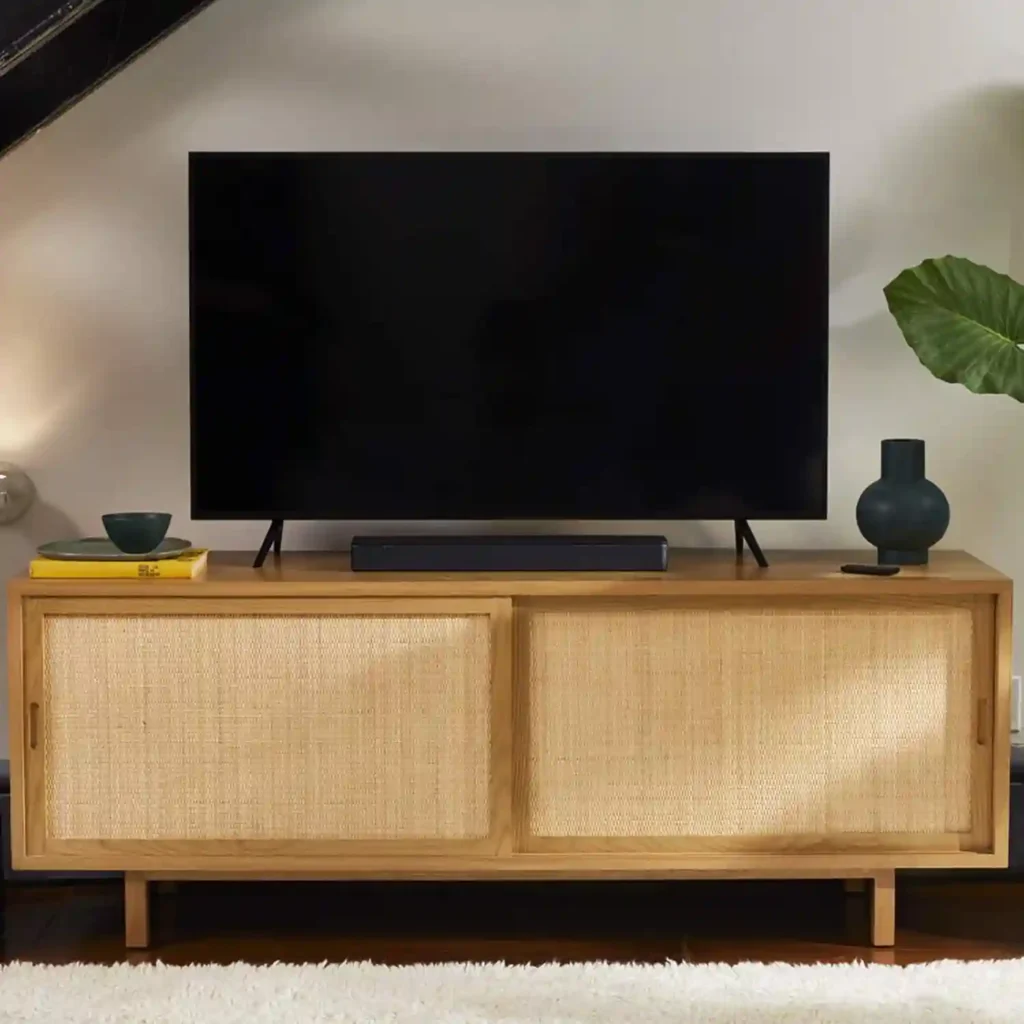
The Bose TV Speaker supports HDMI ARC and optical audio. It also supports Bluetooth audio from compatible source devices, such as phones and tablets.
Method A: Connect using HDMI ARC
- Turn off or mute your TV while making the connections.
- Locate the HDMI ARC or eARC port on your television.
- Connect one end of an HDMI cable to that TV port.
- Connect the other end to the HDMI connection on the Bose TV Speaker.
- Connect the soundbar to power and turn it on.
- Open your TV’s sound settings and select HDMI ARC or the appropriate external audio output.
- Enable HDMI-CEC if necessary for compatible TV remote and power-control functions.
- Play a TV programme or video to confirm that sound comes through the Bose TV Speaker.
HDMI ARC can support volume and power control through compatible HDMI-CEC features, although the exact behaviour depends on your TV and its settings.
Method B: Connect using an optical cable
If your TV does not have an HDMI ARC/eARC port, you can use optical audio if both devices support it.
- Locate the TV’s optical digital audio output.
- Connect the optical cable between the TV and the Bose TV Speaker.
- Select optical or external audio output in the TV’s sound settings.
- Check that the soundbar is powered on and that the audio plays correctly.
An optical connection does not carry HDMI-CEC commands. You may need to program a compatible TV or cable-box remote to control the soundbar’s volume.
Official reference: Bose TV Speaker setup instructions.
How to Connect a Bose SoundTouch 300 to a TV
The Bose SoundTouch 300 supports HDMI ARC and optical audio. It also has HDMI input and HDMI output connections for compatible video-source setups.
Method A: Connect using HDMI ARC
- Locate the HDMI ARC port on your TV.
- Connect it to the HDMI ARC connection on the SoundTouch 300.
- Turn on the TV and soundbar.
- Open your TV’s audio settings and select the appropriate HDMI ARC audio output.
- If volume control or power synchronisation does not work, check the TV’s HDMI-CEC settings.
- Play audio to verify that the connection is working.
If HDMI-CEC is enabled but remote-control behaviour remains unreliable, the SoundTouch 300 offers HDMI-CEC settings through the SoundTouch app. Bose documents options including Default On, Alternate On, and Off.
Method B: Connect using optical audio
- Connect the TV’s optical output to the SoundTouch 300’s optical input.
- Select optical or external audio output on the TV.
- Select the appropriate source on the soundbar if required.
- Play audio and check the volume.
If the soundbar does not turn on automatically with the TV, use its power control. Auto-wake behaviour depends on the configuration and connection, so consult the manual for the appropriate setting.
What about the SoundTouch app?
The SoundTouch 300 uses the Bose SoundTouch app for supported network features, product settings, and software updates. The app is not a replacement for the physical HDMI or optical connection to the TV.
If you connect a video source directly to the SoundTouch 300, follow the connection diagram in its official manual. Do not assume that the HDMI input/output arrangement is identical to the ARC connection used when the TV sends audio to the soundbar.
How to Connect a Bose Solo Soundbar Series II to a TV
The Bose Solo Soundbar Series II has no HDMI connection and does not support Bluetooth. Its supported TV connection options include optical, digital coaxial, and compatible analog audio.
Method A: Connect using optical audio
- Check that your TV has an optical digital audio output.
- Connect the TV’s optical output to the soundbar’s optical input.
- Open the TV’s sound settings.
- Select optical or external audio output.
- Play a video and check that the sound comes through the soundbar.
If the TV offers different digital audio formats, choose a format supported by the Solo Series II and consult its manual if there is no sound.
Method B: Connect using digital coaxial audio
Use this method only if the TV and soundbar have compatible digital coaxial connections.
- Check the connection labels on both devices.
- Connect the appropriate digital coaxial audio cable.
- Select the corresponding audio output on the TV.
- Play audio to test the connection.
Do not confuse a digital coaxial audio output with a standard analog RCA output. They are different types of connections.
Method C: Connect using analog audio
If both devices support a compatible analog connection, such as the appropriate RCA or headphone-style audio connection, you may be able to use it.
- Confirm that the TV has a compatible analog audio output.
- Connect the cable to the correct inputs and outputs.
- Select the appropriate TV audio setting.
- Test the sound and adjust the volume.
If the TV has none of the soundbar’s supported inputs, consult the manuals for both products before purchasing an adapter.
The Solo Series II does not require the Bose Music or SoundTouch app for a basic wired TV connection.
Official reference: Bose support and connection information.
How to Connect a Bose Smart Soundbar 600 to a TV
The Bose Smart Soundbar 600 supports HDMI ARC/eARC and optical audio. It also supports Wi-Fi and Bluetooth for compatible audio devices, along with additional features through the Bose app.
Method A: Connect using HDMI ARC/eARC
- Install the Bose app on your compatible mobile device if you are setting up the soundbar for the first time.
- Connect the soundbar to power and follow the applicable product setup instructions.
- Connect an HDMI cable from the soundbar’s HDMI ARC connection to the TV’s HDMI ARC or eARC port.
- Select the correct TV audio output.
- Check HDMI-CEC settings if compatible remote or power-control functions are not working.
- Play a TV programme or streaming video to confirm that audio is coming from the soundbar.
Method B: Connect using optical audio
If the TV does not have an HDMI ARC/eARC port, optical audio is an alternative when both devices support it.
- Connect the TV’s optical digital audio output to the soundbar’s optical input.
- Select optical or external audio output in the TV’s sound settings.
- Test the connection.
- If the soundbar does not turn on with the TV, consult the Bose instructions for the supported Auto-wake setting.
Optical audio does not support HDMI-CEC commands. As a result, TV remote and power-control behaviour can differ from an HDMI ARC setup.
Do you need the Bose app?
The Bose Music app is used for supported Smart Soundbar 600 setup, Wi-Fi features, settings, and compatible accessories. The physical connection to the TV is still made through HDMI ARC/eARC or optical audio.
The Smart Soundbar 600 also supports compatible Bose bass modules and surround speakers. Check Bose’s compatibility information before buying additional equipment.
Official references: Smart Soundbar 600 setup instructions and Smart Soundbar 600 specifications.
How to Set Up Your TV’s Audio Output
Connecting the cables is only part of the process. Your TV must also send audio through the correct output.
The names of these settings vary by television manufacturer, but you may find them under Settings, Sound, Audio Output, Speakers, or External Devices.
Follow these checks:
- Select HDMI ARC/eARC if using a supported HDMI connection.
- Select optical or digital audio output if using an optical cable.
- Check whether the TV needs a digital audio format change if the soundbar produces no sound.
- If the TV’s internal speakers continue playing, disable them if required by your TV.
- Test volume control with the TV remote and soundbar remote.
Do not set every TV to a fixed volume percentage. The appropriate output and volume settings depend on the TV, the connection, and the soundbar. Follow the relevant device instructions.
Common Bose Soundbar Connection Problems and Fixes
Bose soundbar connected but no sound
Check that the soundbar is powered on, the cable is connected to the correct ports, and the selected TV audio output matches the connection. If using HDMI, confirm that you are using the ARC/eARC port. If using optical, check the digital audio format and the soundbar’s selected source.
HDMI ARC is not working
Confirm that the cable connects the TV’s ARC/eARC port to the corresponding soundbar port. Check the TV’s audio settings and HDMI-CEC configuration. If your Bose model does not have HDMI ARC, choose one of its supported alternatives instead.
The TV remote cannot control the Bose soundbar
With HDMI ARC, compatible volume and power functions may require HDMI-CEC to be enabled. With optical audio, HDMI-CEC commands are not transmitted through the cable, so you may need a compatible remote-control setup.
Bluetooth pairing fails
First, verify that the TV and soundbar support the Bluetooth connection you want to use. A Bose soundbar that can receive Bluetooth audio from a phone does not necessarily support Bluetooth TV audio. The Solo Series II does not support Bluetooth.
For a reliable TV connection, use a supported wired method.
The Bose app cannot find the soundbar
Check that you are using the correct app for your model and follow the product’s setup instructions. The SoundTouch 300 uses the SoundTouch app, while the Smart Soundbar 600 uses the Bose Music app for supported features.
For Wi-Fi-enabled products, also check the network requirements and setup status described in the official instructions.
The soundbar does not turn on automatically
Plugging in the power cable does not guarantee that every soundbar will automatically power on with the TV. Turn the soundbar on using its power control and check the manual for supported auto-wake and HDMI-CEC features.
The sound is delayed or out of sync
Check your TV’s audio settings for an available audio-delay or lip-sync adjustment. If you are using Bluetooth and experience delay, try a compatible wired connection instead.
The TV does not have a compatible audio output
Check the available ports on both devices. If your TV lacks HDMI ARC and optical output, do not assume that an adapter will work with every Bose model. Consult both manufacturers’ instructions to identify a compatible solution.
Conclusion
To connect a Bose soundbar to your TV, first identify your model and check its supported audio connections. HDMI ARC/eARC and optical audio are common options, while older models may require digital coaxial or analog audio.
Select the correct TV audio output, verify the soundbar’s source, and follow the instructions for your specific product. If the connection does not work, check the cable, audio settings, and official model manual before attempting a reset.
Can I connect a Bose soundbar to a TV without HDMI ARC?
Yes, if the TV and soundbar support another compatible connection. Optical audio is a common alternative. Some older models, including the Bose Solo Series II, also support digital coaxial or analog audio connections.
Can I connect a Bose Solo Series II to a TV using HDMI?
No. The Solo Series II has no HDMI connection. Use a compatible optical, digital coaxial, or analog audio connection.
Can I connect a Bose soundbar to a TV wirelessly?
It depends on the soundbar and TV. Bluetooth support for phones and other audio devices does not guarantee that the soundbar can receive TV audio over Bluetooth. Check both devices’ manuals before attempting a wireless TV-audio connection.
Can I use my TV remote to control a Bose soundbar?
Sometimes. HDMI ARC with compatible HDMI-CEC settings can allow volume and power control. With optical audio, you may need to configure a compatible TV or cable-box remote separately.
Which app should I use for a Bose soundbar?
The app depends on the product. The SoundTouch 300 uses the SoundTouch app, while the Smart Soundbar 600 uses the Bose Music app for supported features. A basic wired TV connection for the Solo Series II does not require either app.
Can I add a bass module or surround speakers to every Bose soundbar?
No. Accessory compatibility varies by model. Check Bose’s official compatibility information before purchasing a bass module or surround speakers.