Is your Bose Smart Soundbar 900 frozen, not connecting to Wi-Fi, Bluetooth, or simply not responding? A quick reset usually fixes these issues in just a few minutes. In this guide, you’ll learn how to perform both a soft reset and a factory reset on the Bose 900 Soundbar, with or without the original remote. Plus what to do if the reset doesn’t work.
Quick Answer: How to Reset Bose 900 Soundbar
| Problem | Recommended Reset Method |
|---|---|
| Restart (Soft Reset) | Unplug the power cord for 30 seconds, reconnect it, and wait for the soundbar to reboot. |
| Factory Reset | Remove the soundbar from your Bose account, then press and hold the Power and Skip Forward buttons on the remote for 5 seconds. |
| Reset Without Remote | Power-cycle the soundbar by unplugging it for 30 seconds, then reconnect it. A full factory reset requires the original remote. |
| Clear Bluetooth Pairing | Press and hold the Bluetooth button on the remote for 10 seconds to erase all paired devices. |
| Recovery Mode | Disconnect power for 30 seconds, reconnect it, then use the soundbar’s Action and Microphone Off controls to enter recovery mode if needed. |
Note: These methods are based on Bose’s official reset and recovery procedures. If the issue persists after a factory reset, update the firmware through the Bose Music app or contact Bose Support. Check the official Bose 900 user manual for more details.
When Should You Reset Your Bose 900 Soundbar?
You should reset your Bose Smart Soundbar 900 only after basic troubleshooting (checking cables, power, Wi-Fi, and Bluetooth) doesn’t solve the problem.
- Bluetooth devices won’t pair or keep disconnecting.
- Wi-Fi connection fails or streaming frequently drops.
- The Bose Music app can’t detect or connect to the soundbar.
- The soundbar has no sound even though the TV and cables are working.
- The system freezes, becomes unresponsive, or behaves unexpectedly.
- A firmware update fails or the soundbar gets stuck during the update process.
- The LED light continues showing an error after restarting.
- Voice assistant features stop responding properly.
- You’re selling or giving away the soundbar and want to erase all personal settings.
Before You Reset Your Bose 900 Soundbar
Before performing a reset, make sure you have the following ready:
- Bose Smart Soundbar 900 connected to a reliable power source using the original (or compatible) AC power cable.
- Bose remote control (required for remote-based reset methods).
- Access to the Action and Mic Off buttons on the soundbar for reset methods without a remote.
- A stable power supply—avoid unplugging the soundbar during a reset or firmware update.
- A Wi-Fi connection if you need to update firmware or reconnect the soundbar after the reset.
- The Bose Music app installed on your iPhone, iPad, or Android device for setup and recovery after resetting.
How to Reset Bose 900 Soundbar (Step-by-Step)
Choose the reset method based on the issue you’re experiencing. A soft reset fixes temporary glitches without deleting settings, while a factory reset restores the soundbar to its original settings.
1. Soft Reset (Power Cycle)
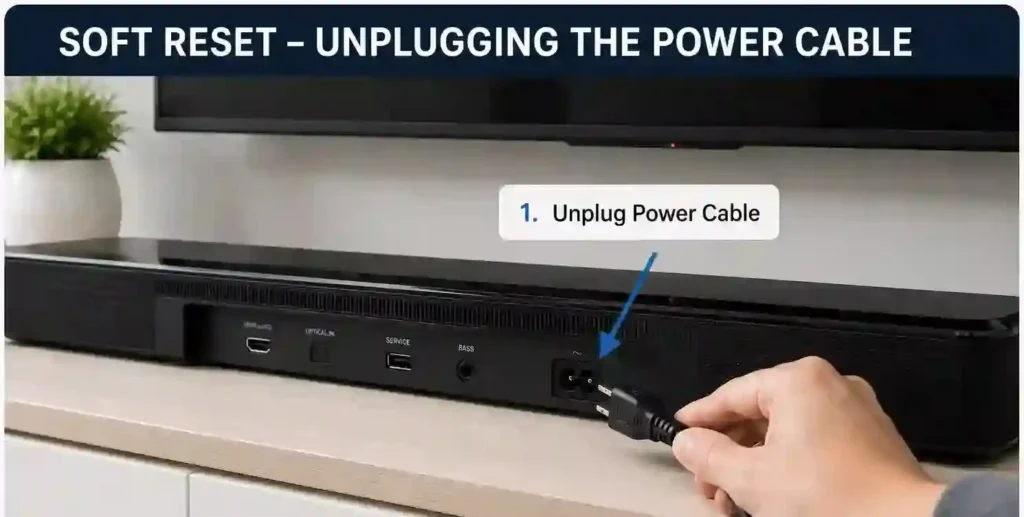
Use this if your soundbar is frozen, unresponsive, or experiencing minor audio issues.
Steps:
- Turn off the soundbar.
- Unplug the power cord from the wall outlet.
- Wait 30 seconds.
- Plug the power cord back in.
- Wait another 30 seconds for the soundbar to restart.
LED Indicator: The light bar pulses white during startup and turns off when the soundbar is ready.
Best for: Audio glitches, temporary software issues, or frozen controls.
2. Factory Reset (Using the Remote)
Use this when you’re selling the soundbar, changing Wi-Fi networks, or troubleshooting persistent issues.
Steps:
- Turn on the soundbar.
- Press and hold the Power and Skip Forward buttons on the remote together for 5 seconds.
- Release the buttons and wait for the reset to complete.
LED Indicator: The light bar blinks white twice, turns off, and then glows solid amber.
What Happens:
- Removes Wi-Fi settings
- Clears Bluetooth pairings
- Resets volume and source settings
- Removes ADAPTiQ calibration
⚠️ Factory Reset erases Wi-Fi settings, Bluetooth pairings, and linked voice assistants. Make sure you know your Wi-Fi password before resetting.
3. Can You Factory Reset Bose 900 Without a Remote?
No. A complete factory reset cannot be performed without the original Bose remote.
If you don’t have the remote, you can:
- Perform a soft reset by unplugging the soundbar.
- Use Recovery Mode if the soundbar isn’t responding.
4. Clear Bluetooth Pairing History
If your Bose 900 won’t connect to Bluetooth devices, clear its paired device memory.
Steps:
- Press and hold the Bluetooth button on the remote for 10 seconds.
- Wait until the light bar blinks blue twice.
Result: All previously paired Bluetooth devices are removed, allowing you to pair new devices.
5. Enter Recovery Mode
Use Recovery Mode if a firmware update fails or the soundbar becomes unresponsive.
Steps:
- Unplug the soundbar for 30 seconds, then reconnect it.
- Within 10 seconds of powering on, press the following buttons on the soundbar:
- Action
- Mic Off
- Action
- Mic Off
- Wait about 1 second between each button press.
LED Indicator:
- Blinking green: Recovery mode has started.
- Scrolling white: Firmware is downloading and installing.
Note: Keep the soundbar powered on during the recovery process. It may take up to 20 minutes to complete.
6. Reconnect the Soundbar
After a factory reset or recovery, you’ll need to set up the soundbar again.
Steps:
- Open the Bose Music app.
- Tap Add Product.
- Follow the on-screen instructions to reconnect the soundbar to Wi-Fi and complete the setup.
Result: Your Bose 900 is ready to use with restored network settings and personalized audio configuration.
Which Reset Should You Use?
| Common Problem | Recommended Reset Method | Explanation |
|---|---|---|
| Soundbar frozen or unresponsive | Soft Reset | Power cycles the soundbar and restarts the system without deleting your saved settings or Wi-Fi configuration. |
| Bluetooth pairing issues | Bluetooth Reset | Clears all previously paired Bluetooth devices so you can pair your phone, tablet, or computer again. |
| Wi-Fi or Bose Music app connection problems | App Reconnect | Reconnect the soundbar through the Bose Music app to restore network connectivity and complete setup. |
| Preparing the soundbar for sale | Factory Reset | Erases all saved settings, Wi-Fi credentials, Bluetooth pairings, and personal preferences before transferring ownership. |
| Firmware or update issues | Recovery Mode | Reinstalls or repairs the firmware when a software update fails or the soundbar becomes stuck during an update. |
| Minor software glitches | Soft Reset | The quickest and safest first step for fixing temporary bugs, audio glitches, or slow performance without losing data. |
Bose 900 Reset Not Working? Try These Fixes
| Issue | What to Do |
|---|---|
| Soundbar Not Powering On After Reset | Ensure the power cord is firmly connected and try a different power outlet. If it is still unresponsive, repeat the reset using the on unit buttons with a full one second pause between each press. |
| Bluetooth Not Pairing Post Reset | Clear the soundbar Bluetooth memory first. Remove the soundbar from your phone Bluetooth list, restart both devices, then try pairing again through the Bose Music app. |
| Device Not Appearing in Bose Music App | Make sure your phone is connected to the same Wi Fi network as the soundbar. Turn off any VPN or firewall apps and update the Bose Music app to the latest version. |
| Soundbar Stuck in Update Mode | If the LED keeps blinking during an update, perform a manual firmware installation using a computer and USB as described on the official Bose support site. Do not power off during the update. |
| Recovery Mode Not Activating | Check that the buttons are pressed in the correct order with one second gaps. Restart the process from the beginning and confirm the soundbar is powered on. |
Advanced Tips
- After a factory reset, re-run room calibration or TrueSpace tuning via the Bose Music app to optimize sound for your specific room layout.
- To disable the Wi-Fi module temporarily, press and hold the Bose Music and Skip Forward buttons on the remote at the same time until the LED changes.
- Use a wired Ethernet connection during firmware updates for improved stability and faster download times.
- Regularly check for firmware updates within the Bose Music app to maintain compatibility and prevent common performance issues.
- If problems persist, restore factory settings and set up the device as new rather than using backup-connected accounts.
Conclusion
Resetting your Bose Smart Soundbar 900, whether performing a soft reboot or a full factory reset, is essential for resolving connectivity issues and restoring smooth performance. Now that you’ve learned how to reset Bose 900 soundbar properly, you can confidently troubleshoot pairing problems, setup errors, or prepare your device for resale. Always follow the correct reset method matching your needs and equipment availability for best results.
Does resetting Bose 900 delete Wi-Fi settings?
Yes. A factory reset removes saved Wi-Fi networks and Bluetooth devices.
Will resetting Bose 900 fix Bluetooth issues?
Yes. Most Bluetooth pairing issues are resolved after clearing Bluetooth memory or performing a factory reset.
Can I reset Bose 900 using only the Bose Music App?
No. The app helps reconnect the soundbar after a reset, but the reset itself must be initiated using the remote or onboard buttons.
Does a factory reset update firmware?
No. Resetting restores factory settings but does not install firmware updates.
How long does a Bose 900 reset take?
A soft reset takes less than 30 seconds. A factory reset usually takes 2–5 minutes, including the setup process.