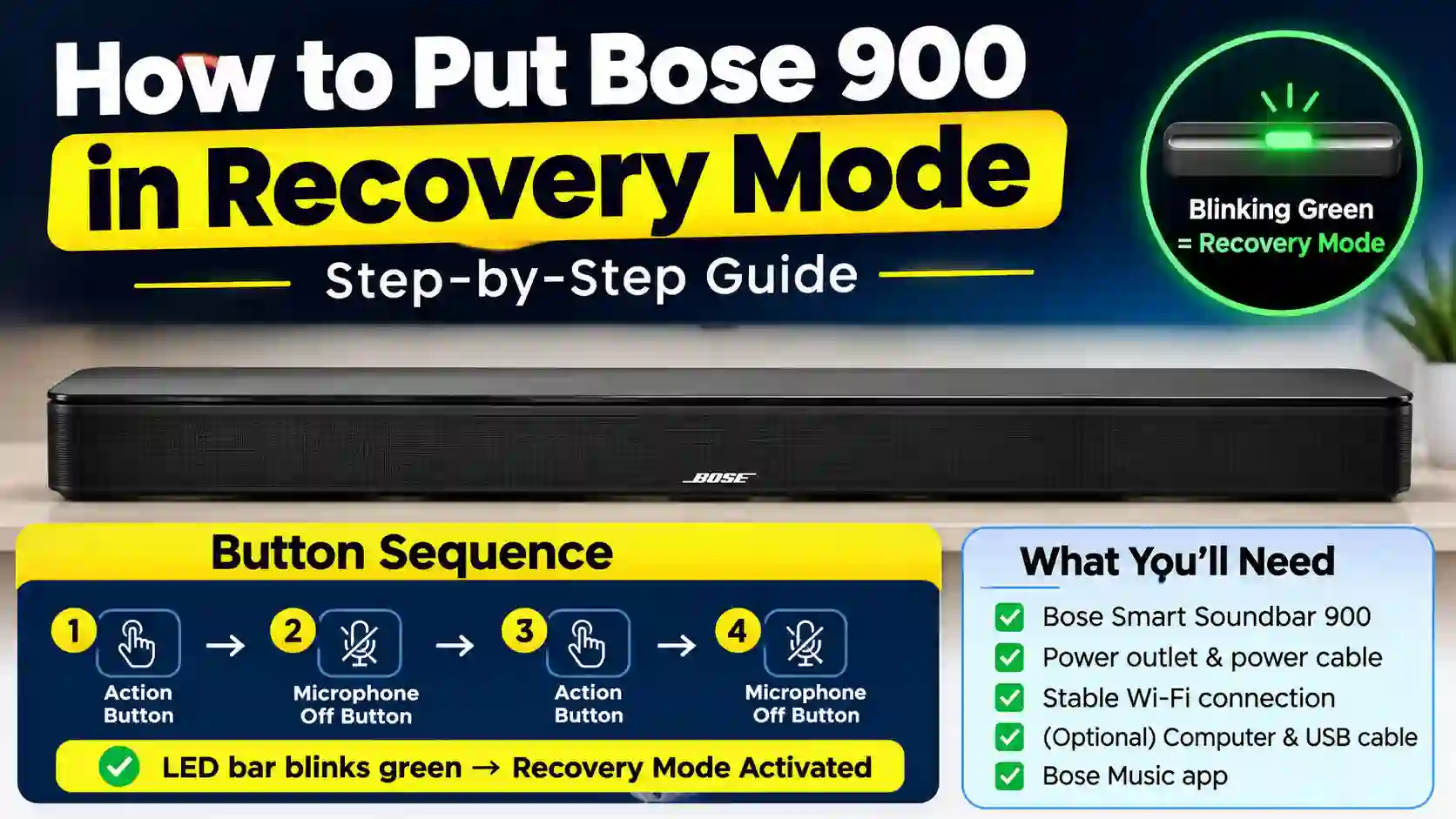
If your Bose Smart Soundbar 900 is stuck, unresponsive, or having firmware problems, you can enter recovery mode using the physical buttons on the soundbar. Press the Action and Microphone Off buttons in the required sequence until the LED bar blinks green.
Below, we’ll show you exactly how to put the Bose 900 in recovery mode, how to confirm that it worked, and what to do if recovery fails.
Quick Answer: Bose 900 Recovery Mode
To put your Bose 900 in recovery mode, press the buttons on the soundbar in this exact order: Action → Microphone Off → Action → Microphone Off, tapping each button once with about one second between presses. When done correctly, the LED light bar will blink green, confirming that the soundbar has entered recovery mode and is ready to download and install the latest update.
How to Put Bose 900 in Recovery Mode
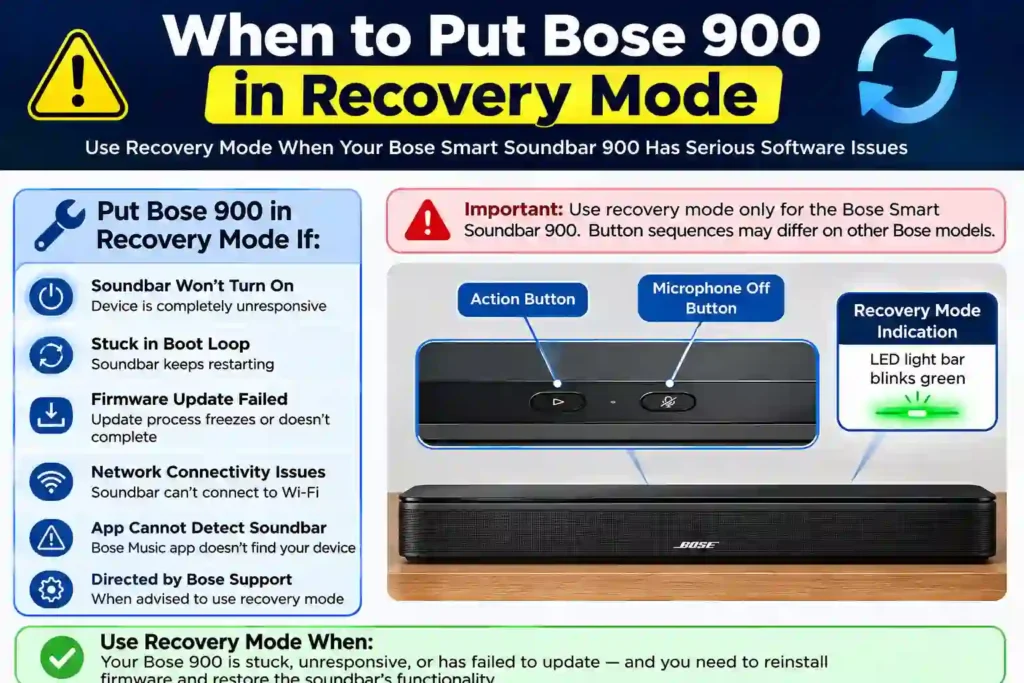
If your Bose Smart Soundbar 900 is unresponsive, stuck during a firmware update, or experiencing software problems, recovery mode can help reinstall the latest firmware.
The process uses the physical buttons on the soundbar and does not require the remote.
How to Enter Recovery Mode
1. Power Cycle the Soundbar
- Unplug the Bose 900 from the power outlet.
- Wait 30 seconds.
- Plug the soundbar back in.
- Wait for the light bar to turn on.
2. Enter the Recovery Mode Button Sequence
Within 10 seconds of the light bar turning on, press the physical buttons on the soundbar in this order:
Action → Microphone Off → Action → Microphone Off
Wait approximately 1 second between each button press.
Do not press the buttons rapidly or use the remote.
3. Confirm Recovery Mode
If the sequence is successful, the light bar will blink green.
A blinking green light indicates that the Bose 900 has entered recovery mode and is ready to attempt a firmware recovery.
The soundbar will then attempt to download and install the latest firmware automatically.
What Does the Green LED Mean?
A blinking green light bar indicates that the Bose Smart Soundbar 900 is in recovery mode.
During the recovery process:
- The soundbar attempts to download the latest firmware.
- The light bar may scroll white from right to left while downloading.
- It may scroll white from left to right while installing.
- The update can take around 20 minutes.
- Do not unplug the soundbar while the update is running.
When the recovery process is complete, the soundbar should restart. You can then open the Bose Music app and reconfigure the soundbar if necessary.
What to Do If Recovery Mode Fails
If the green LED does not appear or the firmware recovery does not complete, work through the following steps.
Green LED Does Not Appear
If the soundbar does not enter recovery mode:
- Unplug the soundbar and wait 30 seconds.
- Plug it back in.
- Wait for the light bar to turn on.
- Within 10 seconds, press:Action → Microphone Off → Action → Microphone Off
- Wait approximately 1 second between each press.
- Make sure you are using the buttons on the soundbar itself.
If the green light still does not appear, repeat the sequence and continue alternating the Action and Microphone Off buttons for up to 30 seconds.
Recovery Starts but the Update Does Not Finish
If the light bar continues scrolling or the firmware update appears stuck:
- Leave the soundbar powered on.
- Make sure the soundbar has a stable network connection.
- Allow sufficient time for the recovery process to complete.
- If available, connect the soundbar directly to your router using Ethernet.
- If automatic recovery continues to fail, move to the manual firmware recovery procedure below.
Avoid repeatedly unplugging the soundbar while firmware is being installed.
Soundbar Is Stuck in a Boot Loop
If the Bose 900 repeatedly restarts or remains stuck during an update:
- Unplug the soundbar.
- Wait at least 60 seconds.
- Reconnect the power cable.
- Try entering recovery mode again.
If the problem continues, use the manual firmware recovery procedure or contact Bose Support.
Manual Recovery / Firmware Update
Manual recovery is an advanced option for situations where normal recovery mode does not resolve the problem.
What You Need
- A computer with an internet browser
- A USB-C to USB-A data cable
- The correct firmware file for the Bose Smart Soundbar 900
- The Bose 900 and its power cable
Download the Firmware
- Download the latest firmware file for the Bose Smart Soundbar 900 from Bose.
- The file should be named
product_update.zip. - Do not rename, open, unzip, or modify the file.
Connect the Computer
- Turn on the Bose 900.
- Connect the computer to the soundbar’s USB-C SERVICE port using the USB cable.
Restart the Soundbar
- Disconnect the soundbar’s power cable.
- Wait 30 seconds.
- Reconnect the power cable.
- Allow the soundbar to restart.
Enter Service Mode
Using the Bose remote, press and hold:
Bluetooth + Skip Back
Hold both buttons for approximately 5 seconds.
The light bar should glow white and then turn off when the buttons are released. This indicates that the soundbar has entered Service mode.
Install the Firmware
- Open a browser on the connected computer.
- Access the soundbar’s local update page.
- Select Upload.
- Choose the
product_update.zipfile. - Start the firmware update.
- Wait for the installation to finish.
Do not disconnect the power or USB cable during the update.
After the installation finishes, allow the soundbar to restart.
Troubleshooting Bose 900 Recovery Mode
Why Does My Bose 900 Have No Lights or Tones?
- Check that the power outlet is working.
- Make sure the power cable is firmly connected.
- Disconnect the soundbar from power for 30–60 seconds.
- Reconnect it and try the recovery procedure again.
- If there is still no response, the soundbar may require professional service.
What Should I Do If the Bose 900 Has Wi-Fi Problems During Recovery?
If the firmware cannot download:
- Make sure your router is working correctly.
- Move the soundbar closer to the router if the Wi-Fi signal is weak.
- Restart your router.
- Try a wired Ethernet connection if available.
- If network recovery continues to fail, use the manual firmware update procedure.
What Should I Do If the Bose 900 Firmware Update Fails?
If the update fails, rolls back, or refuses to install:
- Check that the soundbar has a stable network connection.
- Restart the Bose Music app.
- Restart the soundbar.
- Try recovery mode again.
- If automatic recovery continues to fail, use the manual firmware update method.
- Make sure you use the correct firmware file and do not modify
product_update.zip.
What Should I Do If My Bose 900 Remains Unresponsive?
If the soundbar remains unresponsive after multiple recovery attempts:
- Perform another full power cycle.
- Try recovery mode again.
- Attempt the manual firmware recovery procedure.
- If the soundbar still does not respond, contact Bose Support for further diagnosis or repair.
Important Precautions
Before performing a firmware recovery:
- Use only the firmware intended for the Bose Smart Soundbar 900.
- Do not rename, unzip, or modify
product_update.zip. - Do not disconnect power while firmware is being installed.
- Do not disconnect the USB cable during a manual update.
- Give automatic recovery enough time to complete before assuming it has failed.
- Manual firmware recovery and Service mode are advanced procedures.
Bottom Line
If your Bose 900 is stuck, unresponsive, or experiencing a failed firmware update, start with the standard recovery procedure:
Power cycle → Action → Microphone Off → Action → Microphone Off → Green LED → Wait for recovery.
If recovery does not work, troubleshoot the network and power connection before moving to the manual USB firmware update. If the soundbar remains completely unresponsive after these steps, Bose Support is the safest next step.
Conclusion
Knowing how to put Bose 900 in recovery mode can help restore the soundbar when it becomes unresponsive or has firmware problems. Press Action → Microphone Off → Action → Microphone Off, with about one second between each press. A blinking green LED confirms recovery mode.
If recovery fails, check the power and network connection before trying manual firmware recovery. If the Bose 900 remains unresponsive, contact Bose Support.
FAQs
How do I put my Bose 900 in recovery mode?
Unplug the soundbar for 30 seconds, plug it back in, then within 10 seconds press on the soundbar: Action → Mic Off → Action → Mic Off, waiting about 1 second between presses.
What if the Bose 900 firmware update gets stuck halfway?
Check your network, avoid interruptions, and retry. If it continues, use the manual USB update method.
Why is my Bose 900 not entering recovery mode?
Repeat the process and, if needed, keep alternating Action and Mic Off for up to 30 seconds. Make sure you’re using the soundbar’s physical buttons, with about 1 second between presses.
How do I know if Bose 900 is in recovery mode?
The light bar will blink green after the button sequence, confirming recovery mode.
What does the green blinking light mean on Bose 900?
A blinking or pulsing green LED means the soundbar is in Recovery mode and will try to download and install the latest update.
How long does Bose 900 recovery mode take?
The update usually takes around 20 minutes. The light scrolls white from right to left while downloading and then from left to right while installing.
Does recovery mode erase my Bose 900 settings?
Recovery mode reinstalls the firmware. Afterward, you may need to re-add the soundbar in the Bose app and run ADAPTiQ again.
Is recovery mode the same as a factory reset on Bose 900?
Recovery mode is used to reinstall firmware and fix update or software problems. A factory reset clears the soundbar’s settings and is a separate procedure.