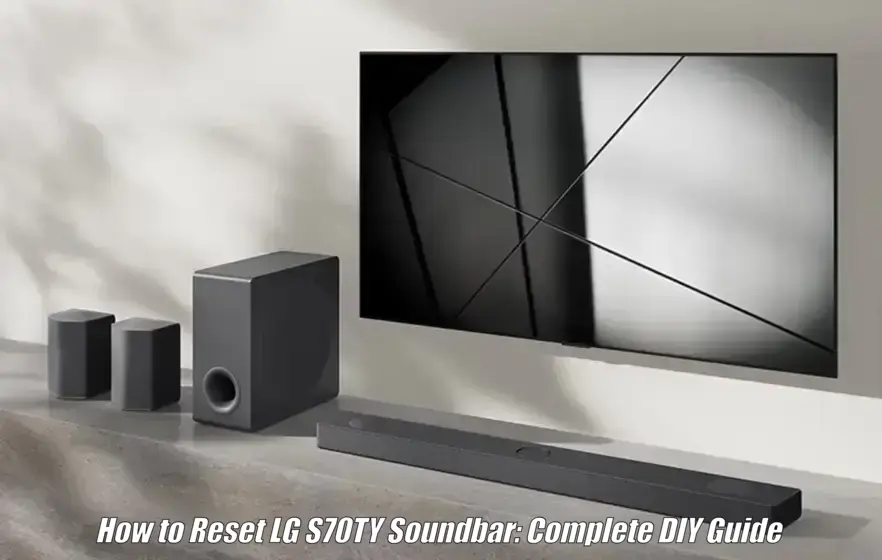
If your LG S70TY has no sound, Bluetooth connection problems, an unresponsive subwoofer, or other persistent issues, a reset may help. This guide explains how to reset the LG S70TY soundbar using the correct factory reset procedure, plus what to do if you don’t have the remote and how to reconnect your devices afterward.
Quick Answer
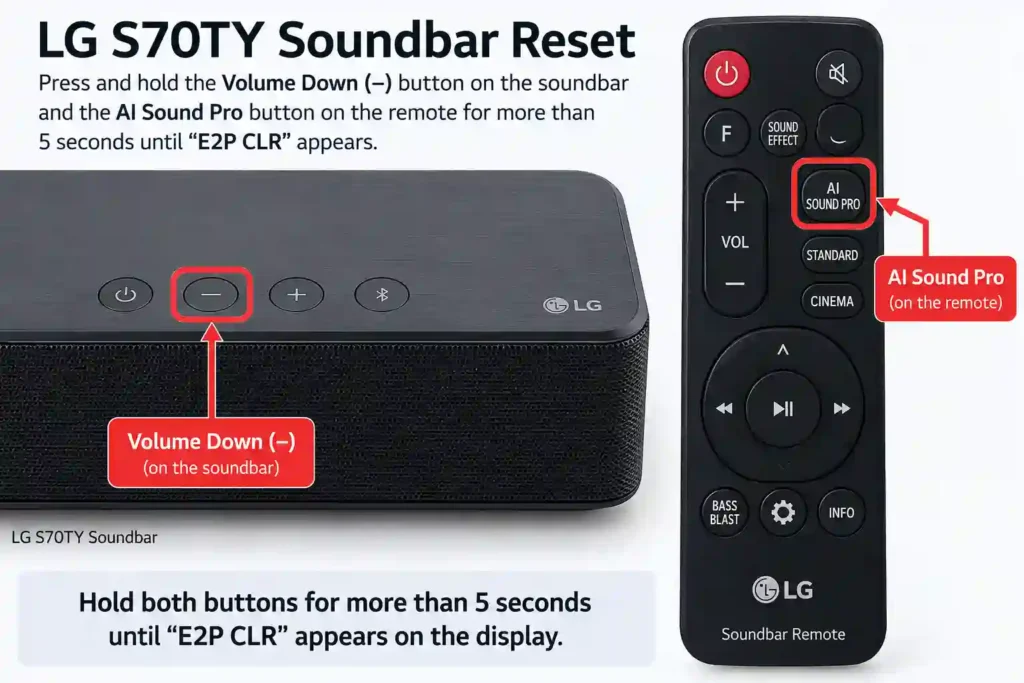
To factory reset the LG S70TY, turn on the soundbar and press and hold Volume Down (–) on the soundbar + AI Sound Pro on the remote for more than 5 seconds. When “E2P CLR” appears on the display, the soundbar will power off automatically. Turn it back on to complete the reset.
Before You Reset Your LG S70TY
A factory reset restores the LG S70TY to its default settings, so you may need to reconfigure some connections and preferences afterward.
Before resetting, keep in mind:
- Sound settings: Custom sound modes, EQ adjustments, and speaker levels may return to their defaults.
- Bluetooth devices: Previously paired phones, tablets, or TVs may need to be paired again.
- Wi-Fi and app settings: If you use Wi-Fi or the LG Soundbar app, you may need to reconnect and configure them again.
- Subwoofer or rear speakers: If they don’t reconnect automatically after the reset, you may need to pair them again.
- TV connection: HDMI and optical cables remain physically connected, but check your TV’s audio output, HDMI ARC/eARC, and CEC settings if you don’t get sound afterward.
A factory reset does not remove or downgrade the installed firmware. It mainly clears stored settings and configuration data.
If you’re dealing with a minor issue such as temporary loss of sound or an unresponsive connection, try a simple power cycle before performing a full factory reset.
LG S70TY Soft Reset vs Factory Reset
| Reset type | What it does | When to use it |
|---|---|---|
| Soft reset / power cycle | Restarts the soundbar without intentionally restoring factory settings | Temporary freezing, no sound, minor connection problems |
| Factory reset | Restores settings to factory defaults | Persistent Bluetooth, connection or configuration problems |
Reset LG S70TY Soundbar: Step-by-Step Instructions
To factory reset the LG S70TY soundbar, use the Volume Down button on the soundbar together with the AI Sound Pro button on the remote. This method clears the soundbar’s stored settings and restores it to its default state.
How to Factory Reset LG S70TY Soundbar?
- Turn on the LG S70TY soundbar. Make sure the unit is fully powered on rather than in standby mode.
- Locate the Volume Down (–) button on the soundbar.
- Press and hold the Volume Down (–) button on the soundbar.
- While continuing to hold Volume Down, press and hold the AI Sound Pro button on the LG remote control.
- Keep both buttons pressed simultaneously for more than 5 seconds.
- Watch the soundbar’s display. When “E2P CLR” appears, the factory reset has been triggered successfully.
- The soundbar should power off automatically after the reset.
- Wait a few seconds, then turn the LG S70TY back on manually.
The factory reset is now complete. You may need to reconnect your TV and Bluetooth devices and restore any customized audio settings you were using before the reset.
Can You Reset the LG S70TY Without the Remote?
LG does not currently document a button-only factory reset procedure specifically for the S70TY. The officially documented reset method requires the Volume Down (–) button on the soundbar and the AI Sound Pro button on the remote.
Avoid using reset combinations intended for other LG soundbars, such as Volume Down + Bluetooth, Volume Down + Power, or Volume Down + 0. LG uses different reset combinations across different soundbar generations, and these methods are not confirmed for the S70TY.
If you do not have the original remote, use a compatible replacement remote or check LG’s official support options for your exact S70TY model and region rather than trying an unverified button combination.
What Happens After Factory Resetting the LG S70TY Soundbar?
After a factory reset, the LG S70TY soundbar returns to its default configuration. This means you may need to reconnect devices and restore your preferred audio settings.
Bluetooth Pairings: Previously paired Bluetooth devices are cleared, so phones, tablets, TVs, and other devices will need to be paired again.
Sound Modes and Custom Settings: Sound modes, EQ adjustments, channel levels, and other customized audio settings return to their defaults. You’ll need to reselect settings such as AI Sound Pro or Cinema if you used them before.
HDMI ARC/eARC: Physical HDMI connections remain unchanged, but the TV and soundbar may need to establish the HDMI ARC/eARC connection again. Check your TV’s audio output and HDMI-CEC/SIMPLINK settings if there is no sound after resetting.
Wireless Subwoofer: If the subwoofer does not reconnect automatically after the reset, follow the LG S70TY pairing procedure to connect it again.
Firmware: A factory reset does not downgrade the installed firmware. The soundbar remains on its currently installed firmware version.
Troubleshooting
| Issue | Solution |
|---|---|
| No response after reset attempt | Ensure the LG S70TY soundbar is powered on. Use fresh batteries in the LG remote if performing a remote‑based reset. If the standard reset method fails, repeat the exact Vol – (soundbar) + AI Sound Pro (remote) sequence and confirm the unit is on; if it still does not respond, contact LG support. |
| Subwoofer will not pair | Power cycle both the subwoofer and the soundbar. Hold the subwoofer pairing button for 5–10 seconds until the indicator blinks (green). Keep both devices close and retry pairing. If the LED stays red, press and hold the pairing button again. |
| No sound after resetting | Confirm the TV audio output is set to HDMI ARC/eARC or optical out as appropriate. Verify that CEC (Simplink) is enabled when using ARC. Reconnect and secure all cables properly, and ensure the soundbar’s input mode matches your connection. |
| Bluetooth pairing fails | After a factory reset, all pairings are cleared. Put the soundbar into Bluetooth pairing mode using the Bluetooth/Pairing control on the remote or unit (as described in the S70TY manual). Forget the old connection on your device and re‑pair. |
| Reset did not resolve audio issues | Update the soundbar firmware from LG’s official website or support portal. Some issues may persist until patches are applied. Minimize interference from nearby wireless networks or RF sources and keep wireless devices close during pairing. |
What to Do After Resetting the LG S70TY
- After reset, reselect your preferred sound modes like Standard, Bass Blast, or Cinema for a personalized experience.
- To resolve ARC or control issues, enable or disable CEC (Simplink) in your TV settings to ensure proper volume and power sync.
- Position the subwoofer at least a few feet from Wi‑Fi routers or metal objects to avoid signal interference and disconnection.
- Use the LG ThinQ mobile app (where supported) for easier customization and to check for firmware updates post reset.
- Perform occasional soft resets (unplug for 30–60 seconds) to maintain long‑term stability if settings begin acting up.
How do I factory reset the LG S70TY soundbar?
Turn on the LG S70TY. Press and hold the Volume Down (–) button on the soundbar and the AI Sound Pro button on the remote for more than 5 seconds. When “E2P CLR” appears on the display, the soundbar will power off. Turn it back on to complete the reset.
Can I reset the LG S70TY without a remote?
LG does not document a confirmed button-only factory reset procedure for the S70TY. The documented method requires the remote. Avoid trying reset button combinations intended for other LG soundbar models. If you do not have the original remote, use a compatible LG remote or contact LG Support for model-specific guidance.
Will resetting the LG S70TY clear Bluetooth pairings?
Yes. After a factory reset, you may need to pair your Bluetooth devices with the soundbar again. If your phone, tablet, or TV has trouble reconnecting, remove the previous LG S70TY connection from that device and start Bluetooth pairing again.
How do I reconnect the LG S70TY subwoofer after a reset?
The wireless subwoofer should normally reconnect automatically after the soundbar is powered back on. If it does not connect, keep the soundbar and subwoofer close together and use the Pairing button on the back of the subwoofer to initiate pairing.
Does factory resetting the LG S70TY remove firmware updates?
No. A factory reset clears user settings and connections but does not normally downgrade the installed firmware. Firmware updates are handled separately from the factory-reset process.
What should I do if the LG S70TY reset does not fix the problem?
First, confirm that the reset completed successfully and “E2P CLR” appeared on the display. If the problem continues, check the TV’s audio output, HDMI ARC/eARC or optical connection, Bluetooth pairing, and Simplink (CEC) settings. Persistent problems may require further troubleshooting or LG Support.
How often should I reset my LG S70TY soundbar?
Factory-reset the LG S70TY only when necessary, such as when persistent connection or settings problems remain after basic troubleshooting. For temporary issues such as no sound or an unresponsive connection, try unplugging the soundbar for 30–60 seconds and reconnecting it before performing a factory reset.