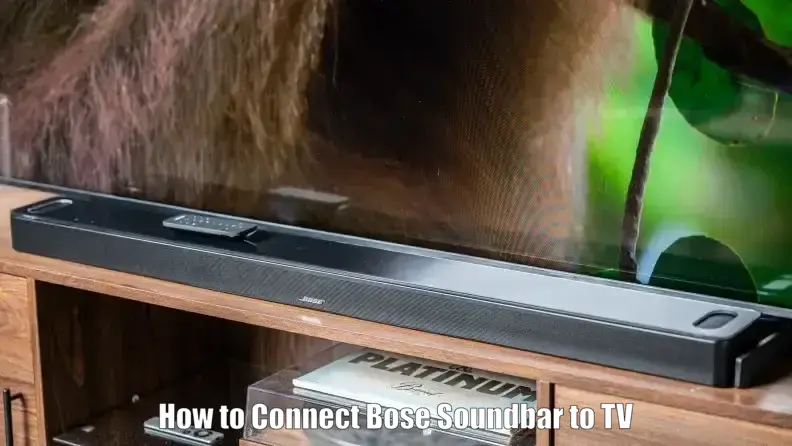
If you’re wondering how to connect Bose soundbar to TV, this guide offers everything you need to achieve high-quality audio in minutes. Whether you own a Bose TV Speaker, SoundTouch 300, or Solo Series II, this step-by-step tutorial will help you enhance your TV sound and simplify control using your existing remote.
This setup is ideal for new soundbar owners, users upgrading from built-in TV speakers, or anyone who wants better dialogue clarity and deeper bass. You’ll also learn how to optimize connections for your TV using HDMI ARC, optical cable, or Bluetooth depending on your model and preferences. Enjoy theater-like sound right in your living room with a properly connected Bose soundbar.
Prerequisites
- A Bose soundbar (e.g., Bose TV Speaker, SoundTouch 300, Solo Series II)
- HDMI cable labeled ARC or an included optical cable
- TV with an HDMI ARC/eARC port or an optical audio out port
- Power outlet to plug in your Bose soundbar
- Internet Wi-Fi network (only for app setup or updates)
- Bose Music or SoundTouch app (for app-configurable models)
Connect Bose Soundbar to TV, Step-by-Step Instructions
- Place the soundbar directly below or in front of your TV, ideally centered, to ensure balanced audio projection across the room.
- Connect the soundbar to a power outlet using the included power cord. The soundbar should turn on automatically once powered.
- Connect via HDMI ARC (recommended): Locate the HDMI ARC or eARC port on your TV and plug one end of the HDMI cable into that port. Connect the other end to the HDMI ARC port on your soundbar. This allows control of volume and power using your TV remote.
- Connect via optical cable (alternative method): Remove the protective caps and align the optical plug with the Bose logo facing down. Plug it into your TV’s optical out and the soundbar’s optical input until you hear a click.
- Bluetooth connection (wireless option): Put the soundbar into Bluetooth pairing mode. On your TV or source device, search for new devices and select the correct Bose model. Confirm the connection when you hear the pairing tone.
- Turn off internal TV speakers: Access your TV’s audio or sound settings menu and manually disable the built-in speakers. This ensures the audio routes fully to your Bose soundbar without echo, distortion, or audio conflicts. Look for an option like “Audio Output” and select “External Speakers” or “HDMI ARC/Optical,” depending on your connection type.
- Power on your devices and check input selection: Turn on both your TV and the Bose soundbar. Ensure your TV’s input is set correctly (HDMI or TV input depending on the source). Some soundbars will auto-detect signal input, while others may require manual input selection on the soundbar or remote.
- Download and launch the Bose app (if required): For models like the Bose Smart Soundbar 600 or SoundTouch series, download the Bose Music or SoundTouch app from your device’s app store. Follow on-screen prompts to connect your soundbar to your Wi-Fi network, pair it with your TV, and configure sound and sync options.
- Confirm sound output is from the soundbar: Play content on your TV and listen. If setup is successful, the sound should come only from the Bose soundbar. Verify that TV speakers remain turned off and check cable connections if the audio is missing or distorted.
- Optional: Add compatible Bose components: Through the Bose app, you can wirelessly connect a bass module or rear surround speakers (if supported by your model). Use SimpleSync to sync sound with other Bose smart speakers or headphones for whole-home or private audio playback.
Common Troubleshooting issues Connect Bose Soundbar to TV
No sound from soundbar
If no audio is coming through the Bose soundbar, ensure the TV speakers are disabled and all cable connections are secure. Recheck TV audio output settings—set it to HDMI ARC, optical, or external audio depending on your setup. Also, verify the soundbar is powered on and correctly set to the input in use.
Audio is distorted or out of sync
Distorted or delayed audio can result from internal TV speakers running simultaneously. Disable them and ensure only the soundbar is active. For syncing issues, use the Bose app to adjust audio delay or lip-sync settings if available.
HDMI ARC features not working
If you cannot control volume or power with the TV remote through HDMI, confirm the HDMI cable is connected to the TV’s HDMI port labeled ARC or eARC. Not all HDMI ports support ARC, check your user manual. If ARC fails, use an optical connection as an alternative.
Bluetooth connection fails
Reset Bluetooth connections by unpairing all devices from the soundbar. Restart both the TV and soundbar, then re-enter Bluetooth pairing mode. On the source device, search and re-pair with “Bose TV Speaker” or the correct model name.
Bose app won’t detect soundbar
Confirm your mobile device and the soundbar are on the same Wi-Fi network. Move closer to the router for stronger signal. Try restarting your phone, router, or the soundbar, and ensure the app is updated to the latest version.
Advanced Tips
- Use HDMI ARC for the best experience with full remote control of audio functions and synchronized power on/off with your TV.
- Connect additional Bose accessories like the Bass Module 500 or 700 using the Bose Music app for an enhanced cinematic experience.
- If your TV has multiple HDMI inputs, route only video to the TV and send audio from your TV’s ARC or optical output to the soundbar.
- When using variable audio output from your TV, set the volume to 75% for optimal control from the soundbar or its remote.
- Enable Bose SimpleSync to wirelessly link with other Bose speakers or headphones for multi-room or personal listening.
Conclusion
Successfully setting up your Bose soundbar with your TV can significantly enhance your home entertainment with clearer dialogue, deeper bass, and unified control via your TV remote. Whether you choose HDMI ARC, optical, or Bluetooth, following this guide ensures a proper connection. Now that you know how to connect Bose soundbar to TV, you can enjoy a richer and more immersive sound experience with confidence.
Can I connect my Bose speaker to my TV?
Yes, you can use HDMI ARC, optical cable, or Bluetooth depending on your TV and soundbar model.
Does my TV need HDMI ARC to connect the soundbar?
No, if your TV lacks ARC, you can use an optical cable to achieve reliable audio connection.
How to connect Bose soundbar to TV with optical cable?
Remove the caps, align the plug (logo down), and insert until it clicks into the TV’s optical output and soundbar’s input.
How can I connect my soundbar to my TV wirelessly?
Enable Bluetooth pairing on the soundbar, scan from your TV or streaming device, then select your Bose soundbar from the list.
Why is there no sound after connecting my soundbar?
Check audio settings on your TV, make sure inputs are correct, internal speakers are off, and cables are fully connected.