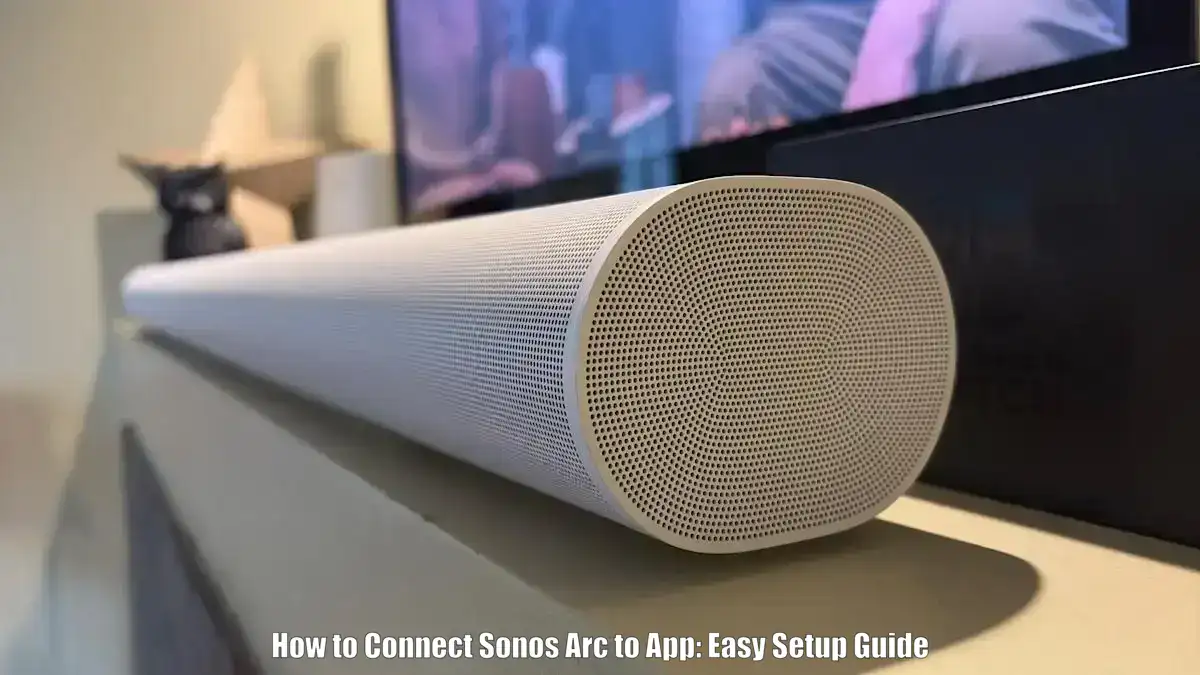
Setting up your Sonos Arc or Arc Ultra becomes easy when you know how to connect Sonos Arc to app using the official Sonos S2 application. This guide will walk you through the initial setup process so you can conveniently control your soundbar, stream your favorite music, and optimize audio settings directly from your mobile device.
Whether you’re a new Sonos owner, upgrading your home theater, or expanding your current Sonos system, this step-by-step tutorial is designed to help you integrate your Sonos Arc with the app. Successful connection lets you unlock features like Dolby Atmos, use your TV remote for volume control, and even add surround speakers later. Let’s get started with what you’ll need.
Prerequisites
- Sonos Arc or Sonos Arc Ultra soundbar
- Included power cord and HDMI cable (use HDMI ARC/eARC port on TV)
- Optional optical audio adapter (for TVs without ARC, limited functionality)
- Smartphone or tablet with the Sonos S2 app installed (iOS or Android)
- Active Sonos account (required for sign-in and setup)
- Reliable Wi-Fi network (2.4 or 5 GHz) with the phone/tablet connected to the same network
- TV with HDMI ARC or eARC port, and HDMI-CEC support for remote control features
Connect Sonos Arc to App, Step-by-Step Instructions
Unbox and Power On the Sonos Arc:
Unbox your Sonos Arc and connect the included power cord to a wall outlet. Wait until the LED indicator begins blinking green, which confirms the soundbar is powered on and ready for setup.
Connect Sonos Arc to Your TV:
Use the supplied HDMI cable to connect your Sonos Arc to your TV’s HDMI ARC or eARC port. If your TV does not support ARC or eARC, use the optical audio adapter, keeping in mind that some features may be limited.
Prepare Your Smartphone and App:
Ensure your smartphone is connected to the same Wi-Fi network you plan to use with the Sonos Arc. Download and open the Sonos S2 app from the iOS App Store or Google Play Store.
Start System Setup in the Sonos App:
If this is your first Sonos product, select “Set up a new system” in the app. If you already have existing Sonos devices, navigate to “Settings” > “System” > “Add Product” to add the Arc to your system.
Detect and Add the Sonos Arc:
The Sonos app will automatically search for nearby devices. When the Arc is detected, you may hear a chime or see a flashing LED. Follow the on-screen instructions to tap “Add” or press the button on the back of the Arc.
Assign Room and Connect to Wi-Fi:
After detection, assign your Sonos Arc to a room such as Living Room or Bedroom to help manage your devices easily. The app will then guide you through connecting the Arc to your home Wi-Fi network. Make sure your phone and the Arc remain on the same network during setup.
Install Available Software Updates:
The Sonos app may prompt you to install a firmware update. Always complete the update to ensure optimal performance, compatibility, and access to features like Dolby Atmos. Do not unplug the Arc or close the app while the update is in progress.
Enable TV Remote Control Support:
To control volume and power using your TV’s remote, enable HDMI-CEC in your TV’s settings. This feature may appear under different names such as Anynet+, Bravia Sync, or Simplink depending on your TV brand. Once enabled, the Sonos Arc will respond to remote commands through ARC or eARC.
Run Trueplay Room Tuning (iOS Only):
If you are using an iPhone or iPad, you can run Trueplay tuning to optimize audio performance for your room. Follow the app’s instructions and move around the room while it measures acoustics. For best results, keep the room quiet during the tuning process.
Add Additional Sonos Speakers (Optional):
You can enhance your home theater setup by adding a Sonos Sub or surround speakers. In the Sonos app, go to “Settings” > “System” > [Room Name] and select “Add Surrounds” or “Add Sub.” Follow the prompts to complete the setup.
Troubleshooting
| Issue | Solution |
|---|---|
| Sonos Arc Not Appearing in the App | Ensure the Sonos Arc is powered on and showing a flashing green light. Confirm your phone is connected to the same Wi-Fi network as the Arc. During setup, press the button on the back of the Arc if prompted and relaunch the Sonos S2 app. |
| No Audio from TV Through Arc | Verify the Arc is connected to the TV’s HDMI ARC or eARC port. In the TV’s audio settings, select bitstream or passthrough output and ensure HDMI-CEC is enabled to allow audio output to external devices. |
| Dolby Atmos Not Working | Optical adapters do not support Dolby Atmos. Use HDMI eARC for full Atmos support. Confirm that both your TV and content support Dolby Atmos and that the Sonos Arc firmware is up to date. |
| TV Remote Cannot Control Arc Volume | Enable HDMI-CEC in the TV settings. If the issue persists, confirm the Arc is connected to the correct ARC or eARC HDMI port and reconfigure the remote in the Sonos app under Settings > System > [Room Name]. |
| Wi-Fi Connectivity Issues | Ensure both your phone and Sonos Arc are on the same Wi-Fi frequency band (2.4 GHz or 5 GHz). Restart your router, Arc, and phone, and disable VPNs or firewall settings that may block local network connections. |
Advanced Tips
- Use the HDMI eARC port on modern TVs to unlock full Dolby Atmos support, multi-channel audio, and tighter lip-sync with video.
- Position the Sonos Arc directly below the TV and avoid blocking its upward-firing drivers to maximize immersive sound.
- Perform Trueplay tuning using an iOS device to automatically adjust the Arc’s sound profile based on your room’s dimensions and layout.
- Inside the Sonos app, add voice control via Sonos Voice Control or Amazon Alexa after setup to manage playback hands-free.
- For a cinema-like experience, pair the Arc with Sonos Sub and symmetrical surround speakers using the app’s multi-speaker configuration option.
Conclusion
Setting up your Sonos Arc with the Sonos app is a straightforward process that unlocks powerful features like Dolby Atmos audio, remote control synchronization, and advanced room calibration. Whether you’re a new user or integrating Arc into an existing setup, following these steps ensures high-quality sound and seamless app control. With this guide, you now know exactly how to connect Sonos Arc to app correctly and optimize it for your home entertainment environment.
FAQs
How do you connect your Sonos to the app?
Download the Sonos S2 app, sign in or create an account, then follow the prompts to add a new speaker and connect it to Wi-Fi.
Why is my Sonos soundbar not showing up on the app?
The Arc must be powered on with a flashing green light and connected to the same Wi-Fi as your phone. Try restarting the app, router, or speaker.
Can you connect Sonos Arc to a phone?
Yes, using the Sonos S2 app on Android or iOS. Your phone must be connected to the same wireless network as the Arc.
How do I make my Sonos Arc discoverable?
Turn on the Arc and wait for the green light. Use the app to begin setup, then press the rear button when instructed to activate discovery mode.
What if no Dolby Atmos is playing?
Ensure you’re connected via HDMI eARC, not optical. Confirm content, TV output, and streaming apps support Dolby Atmos to enable audio playback.
“`