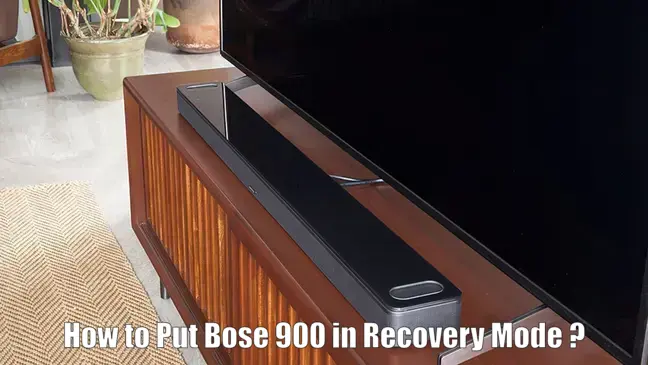
If your Bose Smart Soundbar 900 has become unresponsive, stuck in a boot loop, or experienced a failed firmware update, you can resolve it by learning how to put Bose 900 in recovery mode. This process allows the device to reinstall its firmware directly from Bose servers and recover from critical software errors. Common scenarios include the soundbar freezing during setup, losing network connectivity, or being directed by Bose Support to use recovery mode. In this guide, you’ll follow a proven step-by-step method to enter recovery mode, restore your soundbar’s functionality, and prepare it for setup again using the Bose Music app. Whether your soundbar is bricked after an update or not responding properly, this guide is designed to help you get it fully operational again.
Prerequisites
- Bose Smart Soundbar 900
- Working AC power outlet and original power cable
- Stable Wi-Fi connection for downloading firmware
- Optional: Computer and USB cable for manual firmware update
- Bose Music app installed on a smartphone or tablet
- Do not attempt with other Bose speaker models; button sequences vary
How to put Bose soundbar 900 in setup mode Step-by-Step?
- Plug the Bose Smart Soundbar 900 into a live AC power outlet. Ensure it is receiving power. The soundbar can be either powered on or off before starting.
- Press the physical Action button on the soundbar once. Wait at least one second.
- Next, press the Microphone Off button once. Pause again for at least one second.
- Press the Action button again once more. Wait one second.
- Finally, press the Microphone Off button once again. The LED light bar will begin blinking green, indicating the device has successfully entered recovery mode and started the firmware download process.
- If the automatic firmware recovery fails to complete, initiate a manual firmware installation using a computer and USB cable. Download the correct update file from the official Bose support page before starting.
- Skip putting the Bose Smart Soundbar 900 in setup mode before the manual update since device is already in recovery mode. This ensures the bootloader accepts the firmware without requiring extra steps.
- Follow the manual installation instructions provided by Bose, connecting the soundbar to the computer using a USB cable and transferring the firmware file as directed.
- Once the update completes, disconnect the USB, restart the soundbar, and verify correct operation via the LED indicators and soundbar behavior.
- Open the Bose Music app to reconfigure your soundbar, reconnect it to your Wi-Fi network, and confirm the firmware version is listed as current. This completes the recovery process.
Troubleshooting
Green Light Not Blinking
If the soundbar does not enter recovery mode or the green blinking light is missing, check the button sequence accuracy. Press the Action and Microphone Off buttons exactly in order, with at least one second between presses. Restart the soundbar and attempt the sequence again.
Recovery Fails to Download Firmware
Ensure the soundbar is connected to a stable Wi-Fi network. Move it closer to your router, avoid peak usage times, or test with a mobile hotspot. Poor internet connectivity will prevent firmware download during Bose Soundbar 900 recovery mode.
Device Remains Unresponsive
If the soundbar stays unresponsive after recovery attempts, try a factory reset using the button combination listed in the Bose manual. If that fails, perform a manual USB firmware installation or consult Bose Support for repair.
Stuck in Boot Loop or Rebooting
Looping restarts often indicate a corrupted install. Enter recovery mode again to reinstall firmware or use the direct USB method to correct the issue. Avoid power loss during this process.
Bluetooth or Wi-Fi Issues Post-Recovery
After recovery or firmware reinstall, reset your wireless connections. Reconfigure the Bose Music app, clear old device pairings, and restart your router for a clean connection.
Advanced Tips
- If recovery mode fails more than once, use the manual USB firmware installation as a reliable fallback.
- Keep your Bose Music app updated on all connected devices to ensure compatibility with your smart soundbar after recovery.
- If your network uses strong firewall or DNS filters, temporarily switch to a less restricted network or mobile hotspot to allow firmware downloads.
- After recovery completes, check your firmware version in the Bose Music app under Device Settings to ensure it’s current.
- To ensure Bluetooth reconnects properly, remove the soundbar from previously paired devices before adding it again post-recovery.
Conclusion
Following the correct steps for putting your Bose Smart Soundbar 900 in recovery mode can restore a bricked or unresponsive device with minimal downtime. Whether automatic or manual, recovery reinstalls the firmware and allows you to complete setup in the Bose Music app afterward. By staying patient and using only secure methods, you can return your soundbar to proper working order. Use this guide anytime you need to know how to put Bose speaker in recovery mode successfully.
FAQs
How do I know my Bose 900 entered recovery mode?
The LED light bar will blink green, confirming that the soundbar is in recovery mode and downloading firmware.
Will updating the Bose 900 firmware delete all my settings?
No, recovery mode only reinstalls firmware. To erase settings, you must perform a separate factory reset.
What if the Bose 900 firmware update gets stuck halfway?
Check your network, avoid interruptions, and retry. If it continues, use the manual USB update method.
Can I enter recovery mode using the Bose Music app?
No, recovery mode activation is done only through the physical buttons on the soundbar.